Users, Groups & Access
This page covers inviting members, organising them into groups, and how access cascades through the resource hierarchy. Access is granted with Roles & Permissions. Advanced automation can also use low-level IAM policies, described at the end of this page. To see what an identity can do, use the Access Explorer.
Members
Manage members under Access > Members (https://app.admrl.co/access/members). Inviting members and creating groups needs the Manage members and groups capability (Manage members and groups), held by Administrator and Owner.
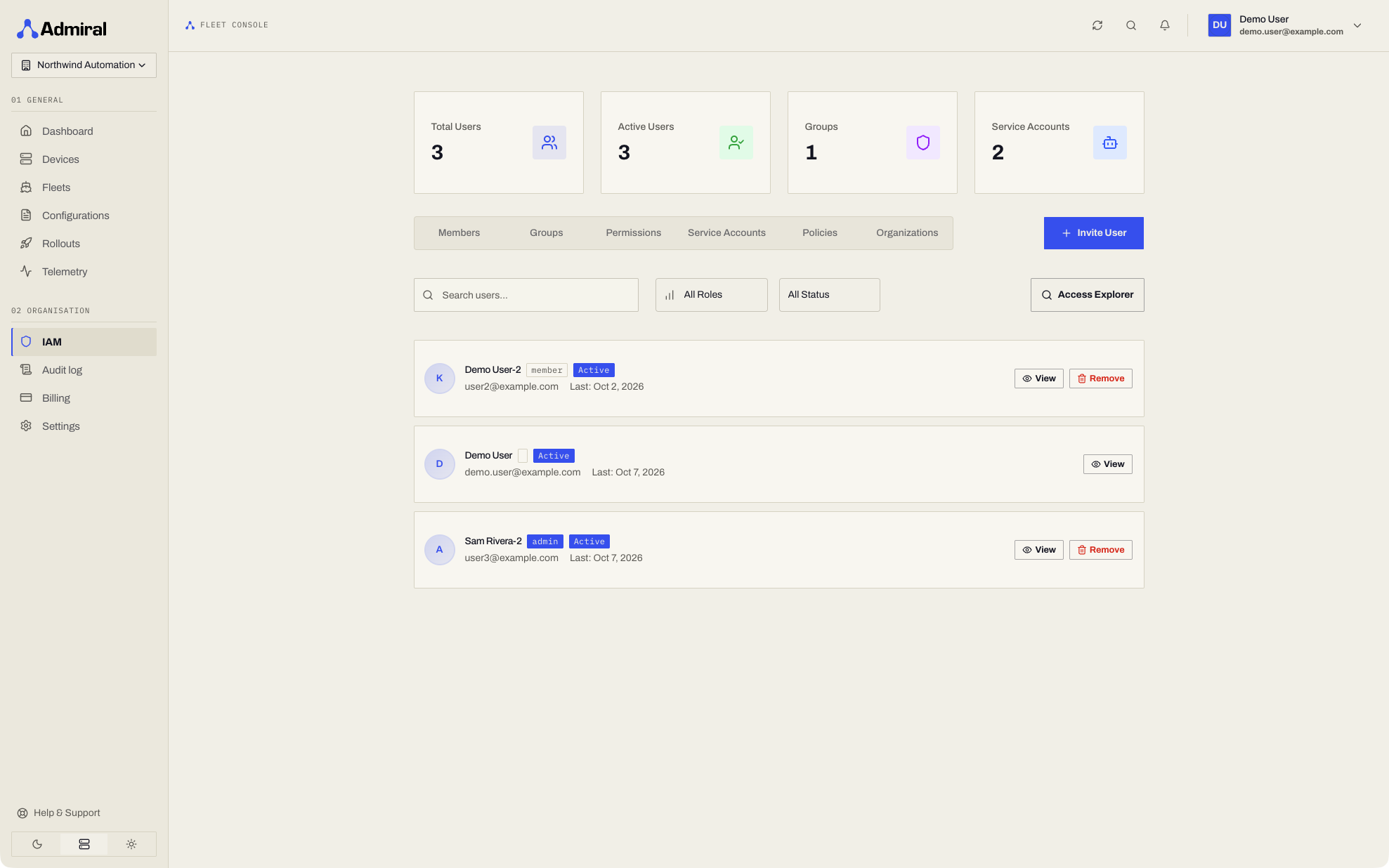
Inviting a member
- Go to Access > Members and click Invite member. This opens the invitation form.
- Enter the recipient's email address.
- Choose a Role. The invitation defaults to the built-in Engineer role.
- Send the invitation.
When the invitation is accepted, the member joins the organisation and the chosen role is assigned at organisation scope. The Owner role is never granted by invitation.
Assigning roles to a member
Roles are assigned from the role, not from the member's page. Open Access > Roles, choose the role, click Assign role, and select the member and the scope. The member's detail page lists their direct role assignments and their effective capabilities.
Member lifecycle
- Deactivating or deleting a user revokes their CLI sign-ins and ends their open remote access sessions.
- Removing a user from an organisation ends their remote access sessions on that organisation's devices.
- Audit: role creation, changes, duplication and deletion, and role assignment and removal are recorded in the Audit Log.
Groups
Groups bundle members so that a team can be granted access together:
- Go to Access > Groups (
https://app.admrl.co/access/groups) and click Create group. This needs Manage members and groups. - Add members to the group.
- Assign a role to the group: go to Access > Roles, choose the role, click Assign role, and select the group.
Members of a group receive the capabilities of the roles assigned to that group, at the scope of each assignment.
The resource hierarchy
Access flows downward through the resource hierarchy:
Organisation
└── (nested / sub-organisations)
    └── Fleet
        ├── Devices
        └── Configuration (attached)
- Organisations are the top-level tenant. They can contain nested sub-organisations, whose billing rolls up to the parent account.
- Fleets live within an organisation and group related devices.
- Devices belong to fleets.
- Configurations define the workload and system settings, and are attached to fleets.
Cascading access
A role assigned at a scope applies to everything inside that scope:
- An assignment at organisation scope applies to every fleet and device in the organisation.
- An assignment at fleet scope applies to that fleet and every device in it.
- An assignment at device scope applies to that device only.
Configurations and rollouts are organisation-wide in this version. Every organisation member can read configurations. Creating, editing and controlling them is set by the role capabilities at organisation scope.
Roles & Permissions
Roles & Permissions are the main way to grant access. They bundle capabilities into roles such as Engineer, Technician and Viewer. Roles can be built-in or custom, and can be assigned to users, groups and service accounts at organisation, fleet or device scope.
Low-level IAM policies (advanced)
Admiral also has an IAM policy engine for automation that needs explicit grant statements. A policy is a named, reusable list of statements. Each statement grants one role on one scope:
Policy: "custom-pipeline-deployer"
  Statement 1: role=config_creator        scope=organisation:org-uuid
  Statement 2: role=rollout_type_editor   scope=organisation:org-uuid
Use roles for members, groups and most service accounts. Use policies when you need explicit statements.
Creating and attaching a policy
- Go to Access > Policies (advanced) (
https://app.admrl.co/access/policies) and click Create policy. This needs Manage access. - Enter a name and an optional description.
- Add statements: choose the scope type, the resource and the role.
- Save the policy.
To attach a policy to one service account, open the account (Access > Service accounts), go to the Policies tab and click Attach Policy. To attach one policy to several service accounts, use Attach to SAs on the policy list.
Delegation and skipped statements
You can only attach a policy with statements you hold yourself. Statements you do not hold are skipped, not failed. The attach result shows how many grants were applied and how many were skipped.
Service accounts
Service accounts are machine identities. They are not members of the organisation. They receive no access unless it is granted to them through a role or a policy. See Service Accounts.
Who can do what
| Action | Required |
|---|---|
| View service accounts, policies, and the role list | Any organisation member |
| Invite members, create groups | Manage members and groups |
| Create, edit, duplicate or delete roles | Manage access |
| Assign or remove roles | Manage access. Capabilities you do not hold at that scope are skipped. |
| Assign the Owner role | An Owner of the organisation |
| Create, edit, delete or attach IAM policies | Manage access |
| Create, edit or delete service accounts, and mint or revoke their keys | Manage access |
Service accounts cannot create other service accounts, mint keys, author policies, assign roles or grant access.
Next steps
- Roles & Permissions: the capability catalogue and the built-in roles.
- Service Accounts: create and authenticate machine identities.
- Access Explorer: check the effective access of an identity.
- Admiral CLI & Workload Access: open remote terminals and manage devices from the command line.