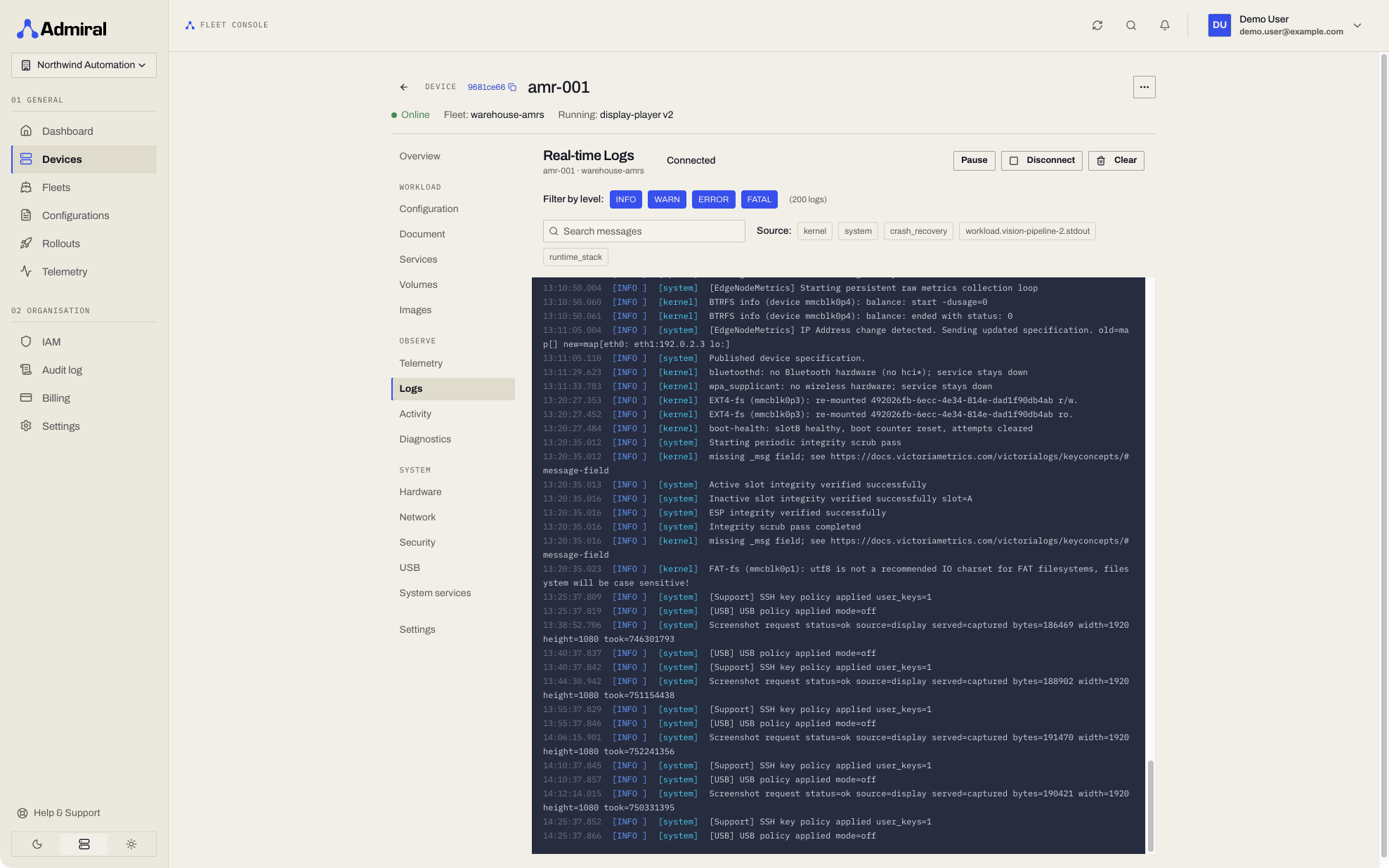
Real-time Logs

Stream system and workload logs in real-time to troubleshoot issues as they happen.

Log Viewer

You can access logs from the Logs tab on any device's detail page.

What you see:

  • Last 30 lines of system buffer (so you have context)
  • Live streaming of new log entries
  • Unified view of system and workload logs

Log Sources

System Logs - Messages from the OS and Admiral agent:

[2024-01-15 10:23:45] systemd: Started Admiral Agent
[2024-01-15 10:23:46] admiral-agent: Connected to control plane
[2024-01-15 10:23:47] NetworkManager: wlan0: connected to Office-5GHz

Workload Logs - Your container's stdout/stderr:

[2024-01-15 10:24:01] app: Starting web server on port 8080
[2024-01-15 10:24:02] app: Database connection established
[2024-01-15 10:24:03] app: Ready to accept requests

Log Levels

Logs are color-coded so you can spot problems quickly:

  • DEBUG: Gray (diagnostic info)
  • INFO: White (normal operations)
  • WARNING: Yellow (potential issues)
  • ERROR: Red (errors needing attention)
  • CRITICAL: Red, bold (severe errors)

Troubleshooting Common Issues

Container Won't Start

Look for:

Error: Failed to pull image docker.io/user/app:latest
Error: Container exited with code 1

Solutions:

  • Verify image name and tag
  • Check registry authentication
  • Review container logs for application errors

Network Issues

Look for:

NetworkManager: wlan0: connection failed
admiral-agent: Failed to connect to control plane

Solutions:

  • Verify Wi-Fi credentials
  • Check network availability
  • Review firewall rules

Performance Problems

Look for:

kernel: Out of memory: Kill process 1234
app: Request timeout after 30s

Solutions:

  • Check memory telemetry
  • Review CPU usage
  • Increase resource limits

Log Filtering

You can filter the stream to find exactly what you need:

  • Source: System only, workload only, or both
  • Level: Show only warnings and errors
  • Time range: Last hour, 24 hours, custom
  • Search: Text search within messages

Downloading Logs

Need to analyze logs offline?

  1. Click Download Logs
  2. Select time range
  3. Choose format (text, JSON)
  4. Download

Use cases:

  • Share with support teams
  • Detailed analysis with external tools
  • Archive for compliance

Log Retention

  • Live streaming: Available while device is online
  • Buffer: Last 30 lines always available
  • Historical: 7 days (default)
  • Archived: Long-term storage (enterprise plans)