Rollouts Engine (v2)
Admiral's Rollouts Engine delivers a change to a fleet of edge devices, autonomous robots, or kiosks in a controlled way: a canary first, then a bounded number of devices at a time, with a failure budget that pauses the rollout by itself when the new release misbehaves. A rollout tracks every device until it has actually applied the change, including devices that are offline today and reconnect next week.
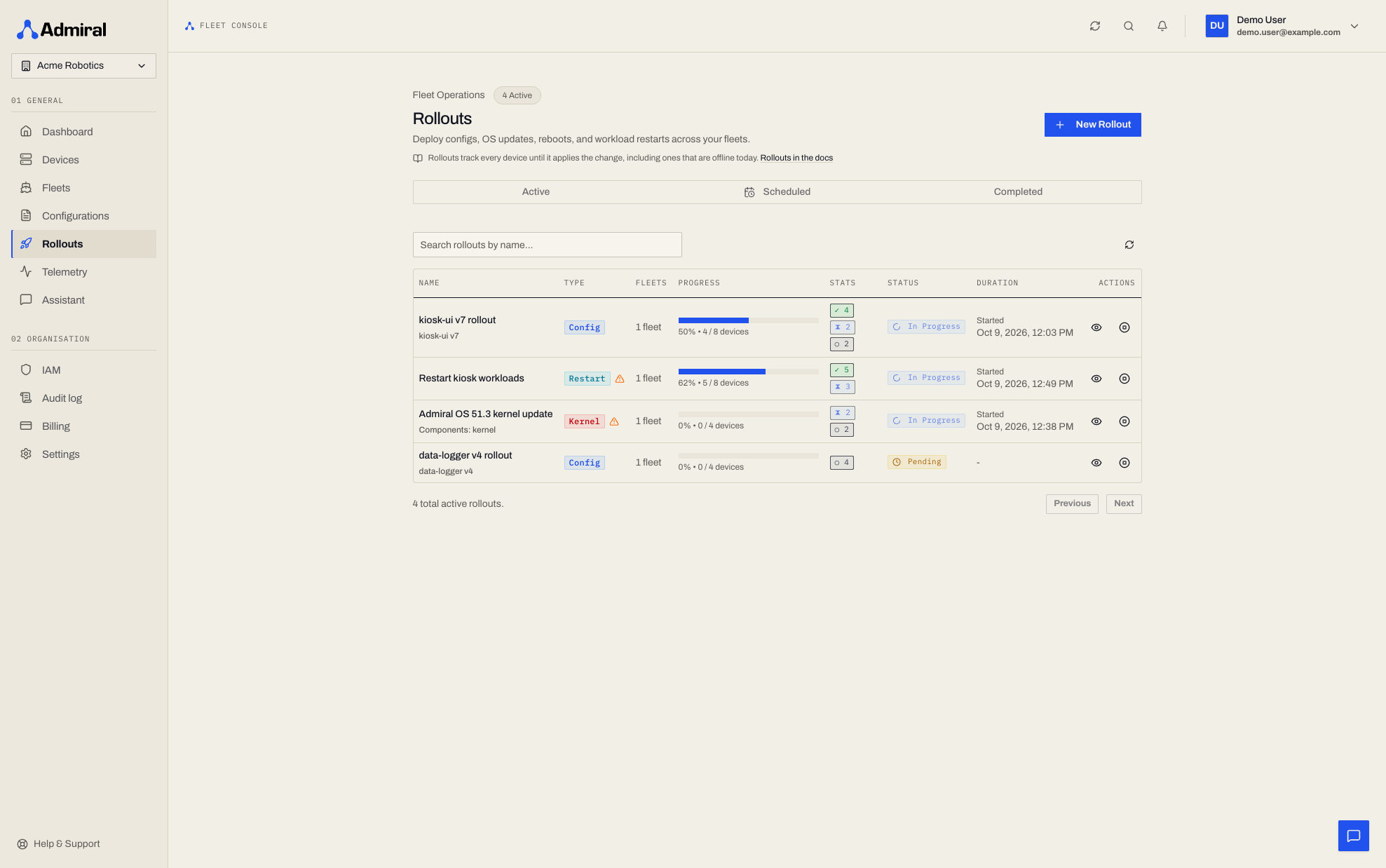
Why Use Rollouts?
Deploying updates simultaneously to hundreds of edge devices deployed in remote stores, autonomous warehouse robots, or factory cells carries severe operational risks:
- Robotics Mission Disruption: Updating navigation or motor control stacks while an autonomous robot is actively carrying payloads or navigating an aisle risks mid-task stoppages.
- Cellular & Industrial Wi-Fi Congestion: Simultaneous multi-gigabyte container or OS downloads overwhelm facility routers and cellular gateways.
- Widespread Outages: A breaking dependency can take down an entire operational facility simultaneously.
The Rollouts Engine reduces these risks with a canary phase, an in-flight limit, an automatic pause on failures, per-device progress, rollback, and pre-execution impact simulation.
The Five Rollout Operation Types
When authoring a rollout (Rollouts > New Rollout), you choose from 5 specialized operation types:
| Category | Operation Type | What It Does | Disruption Level |
|---|---|---|---|
| Configuration | Configuration Rollout (config) | Pushes updated container image, environment variables, mounts, and subvolumes. | Non-disruptive (Fast container swap) |
| System Updates | System Update (kernel_update) | Downloads and verifies new OS system images into the passive A/B boot slot. | Disruptive (Requires device reboot) |
| System Updates | Admiral Manager (initram_update) | Updates the Admiral Manager supervisor binary in the boot partition. | Disruptive (Reboots or restarts init) |
| Lifecycle | Workload Restart (restart_workload) | Restarts the active container workload (with optional container target). | Brief Interruption (No OS reboot) |
| Lifecycle | System Reboot (reboot) | Sequenced reboot of target machines (with optional force reboot override). | Disruptive (Full hardware reboot) |
6-Step Rollout Creation Workflow
Creating a rollout walks through a guided 6-step wizard:
Step 1: Operation Type
Select the operation to perform (config, kernel_update, initram_update, restart_workload, or reboot).
Step 2: Deployment Specifications
- For Configuration: Select the configuration and specific version number (or lock to
latest). - For System Updates: Enable Use Current Versions (automatically deploys whatever release is marked
currentin the version catalog) or pick specific component version IDs. Select post-update action:Reboot Device,Restart Supervisor, orNo Action. - For Workload Restart: Specify an optional container target name.
- For Reboot: Toggle between graceful ACPI shutdown and
Force Reboot.
Step 3: Rollout Name & Metadata
Provide a descriptive name (e.g., AMR Navigation Stack v3.2 Canary) and optional release notes.
Step 4: Target Fleets
Choose one or more target fleets. You can search, filter by tag, or select all fleets across the organization.
Step 5: Execution Timing & Scheduling
Choose when the rollout executes:
- Start Immediately: Begins with the canary as soon as submitted.
- Schedule for Later: Queue the rollout for an upcoming maintenance window (e.g., when autonomous robots are docked at base charging stations):
- One-Click Presets: In 1 hour, Tonight at 2:00 AM, Tomorrow at 6:00 AM, Saturday at 11:00 PM, Sunday at 2:00 AM, or Next Monday at 1:00 AM.
- Custom Date & Time: Pick any future timestamp in your local timezone. Admiral converts the schedule to UTC.
Admiral edge nodes automatically apply 0 to 5 minutes of pseudo-random jitter when fetching update manifests. This guarantees thousands of devices never hit download servers or control mesh brokers at the exact same millisecond.
Step 6: Rollout Strategy
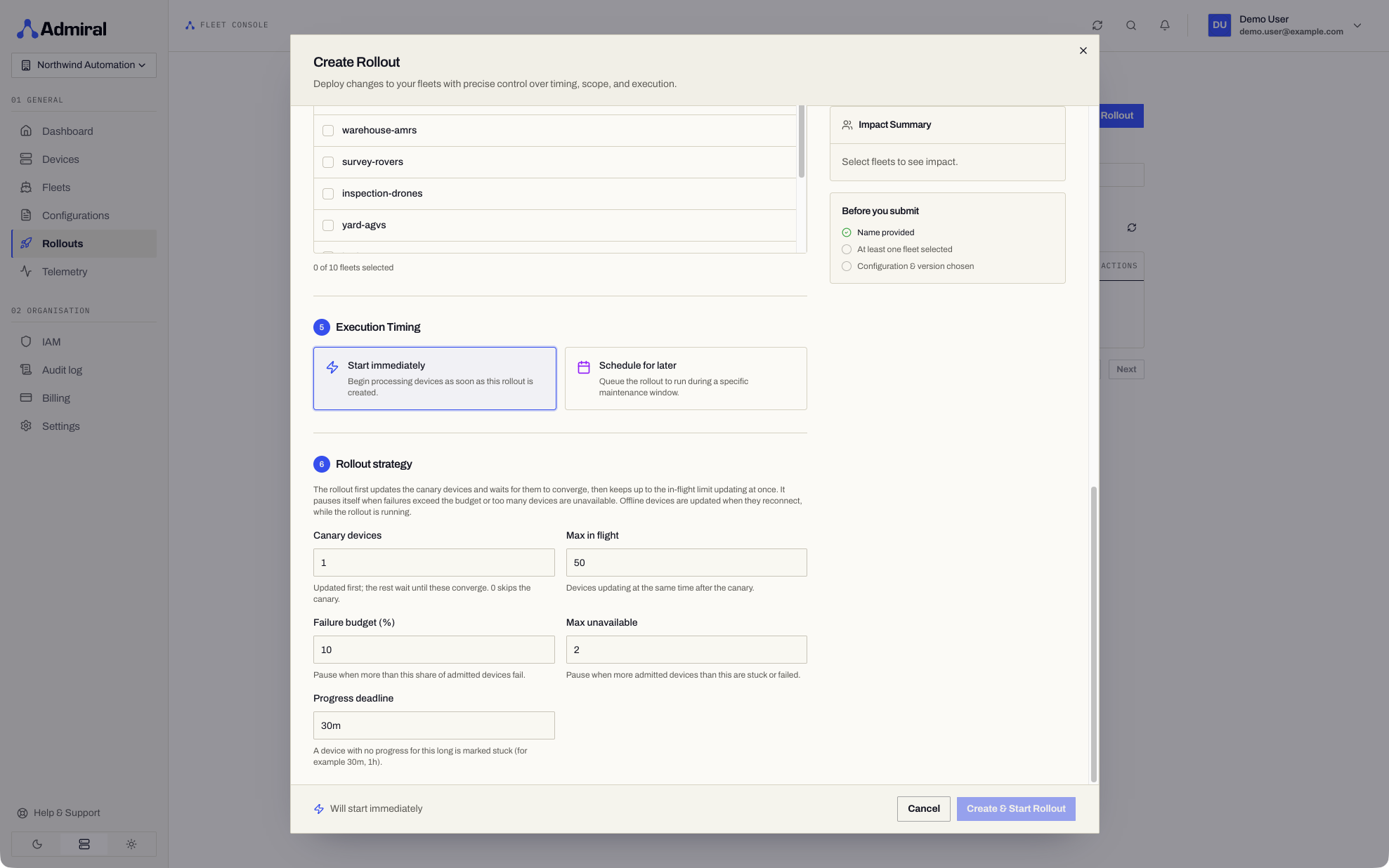
| Setting | Default | What it does |
|---|---|---|
| Canary devices | 1 | Updated first. Every other device waits until all canary devices have converged. 0 skips the canary. |
| Max in flight | 50 | How many devices update at the same time after the canary. As each one finishes, the next online device starts. |
| Failure budget (%) | 10 | The rollout pauses itself when more than this share of the devices it has started on have failed. |
| Max unavailable | 2 | The rollout pauses itself when more than this many started devices are failed or stuck. |
| Progress deadline | 30m | A device that makes no progress for this long is marked stuck (between 1 minute and 7 days, for example 30m, 1h). |
Robotics best practice: keep the canary at one robot in a supervised cell, verify odometry, sensor feeds, and navigation once it converges, and only then let the window open. A small Max in flight also keeps multi-gigabyte downloads from saturating a site's uplink.
Pre-Flight Impact Analysis & Disruption Warnings
Before any rollout is submitted, Admiral's backend simulates the deployment against the target fleets:
- Total Devices Affected: Full inventory count across all selected fleets.
- Online Now: Number of hosts currently online that can be updated as soon as the strategy allows.
- Offline Hosts: Number of offline hosts. They are updated when they reconnect, if the rollout is still running and not paused.
- Disruption Level:
- Non-disruptive: Workload applies seamlessly without hardware downtime.
- Disruptive: Flags that running workloads or hardware will reboot. Requires explicit administrator confirmation ("I understand and want to proceed" checkbox) before the submission button unlocks.
Pipelines can run the same check with POST /v1/rollouts/impact and a body of {"fleet_ids": [...], "type": "config"} (type is config, reboot, restart_workload, or system_update). It returns total_devices, online_count, is_disruptive, by_architecture, by_board, and, for OS updates, incompatible_count (no compatible version) and untagged_count (devices that have not reported their hardware yet and are skipped until they do). The pre-flight check does not look at maintenance windows; devices outside their window wait for it once the rollout runs.
How a Rollout Progresses
A device receives the new version only when the rollout admits it. Admission needs three things: the device is online, there is room in the in-flight window, and the rollout is not paused. Nothing is pre-assigned to offline devices, so a bad release cannot keep spreading on its own while nobody is watching.
- Canary: the first online devices, up to Canary devices, are admitted. The rest wait until every canary has converged. A canary that fails pauses the rollout.
- Window: devices are admitted one at a time as slots free up, keeping at most Max in flight updating at once.
- Converged: a device counts as converged when it reports that it has applied the new desired state and runs the exact configuration version the rollout targets. A device that only says it is done does not count.
- Reconnects: an offline device is admitted when it comes back online, as long as the rollout is still running. A device that reconnects while the rollout is paused receives nothing.
- Memory tests: a device that is holding its workload for a memory test is not admitted and is not counted as failed. It receives the change after the test ends.
- Completed: the rollout completes only when every targeted device has converged. A configuration rollout then makes the new version the fleet's configuration. Until then it stays In progress, waiting for devices to reconnect, for as long as it takes; pause or cancel it if you do not want to wait.
Device phases
Each admitted device shows its phase, live:
| Phase | Meaning |
|---|---|
| Not admitted | Not started yet. |
| Waiting (offline) | Targeted but offline; admitted when it reconnects. |
| Assigned | Admitted; the device has been sent the new version. |
| Pulling image, Extracting | Downloading and unpacking the container image. |
| Downloading, Installing, Verifying | Downloading, writing, and verifying a system update. |
| Staged | Downloaded and waiting for the device's maintenance window. |
| Starting | Starting the new workload. |
| Converged | Done. |
| Failed | The device crashed on the new version, rolled back by itself, or the update failed. |
A device that stays in one phase with no progress for longer than the Progress deadline is flagged stuck (No progress since ...). It stays admitted and counts against Max unavailable.
A device that leaves the rollout's fleets after the rollout started (moved, unpaired, or deleted) is dropped: it is no longer updated and no longer counts towards completion or any limit.
Monitoring & Failure Protection
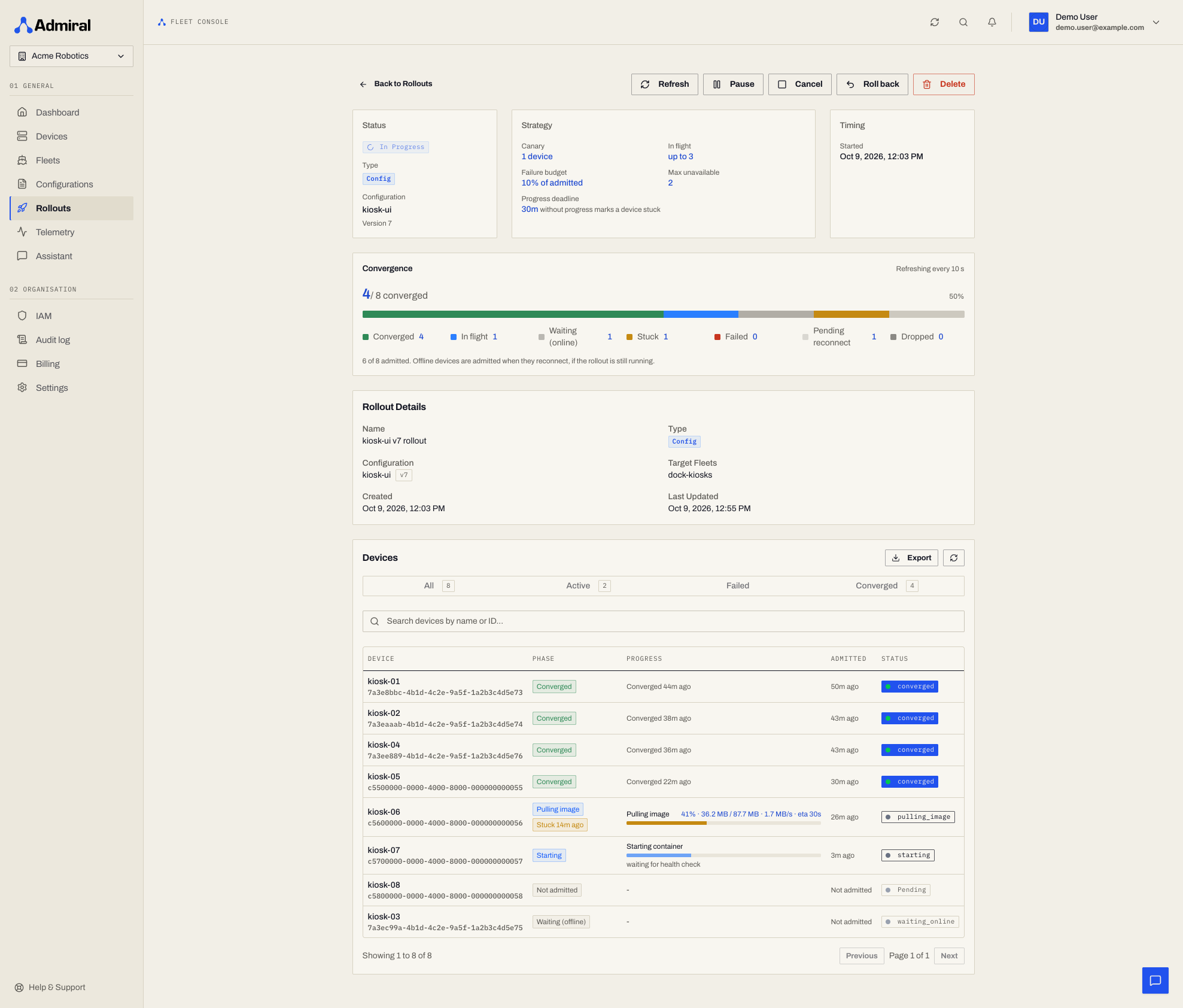
The rollout detail page updates live:
- Strategy: the canary, in-flight limit, failure budget, max unavailable, and progress deadline the rollout runs with.
- Convergence:
38 / 42 convergedwith a bar split into Converged, In flight, Waiting (online), Stuck, Failed, Pending reconnect (offline, not started), and Dropped (left the target fleets). The same converged-versus-target chip appears on the fleet's Overview tab. - Devices: tabs for All, Active, Failed, and Converged. Each row shows the phase, a progress bar with bytes or layers, transfer rate, time remaining, the stuck badge, and the last error. Select a row for the device's full history.
Automatic pause
The rollout pauses itself, and a Rollout paused banner explains why, when:
- a canary device fails;
- failed devices exceed the Failure budget;
- failed plus stuck devices exceed Max unavailable.
While paused, no further devices are admitted, including devices that reconnect. Devices already updating carry on.
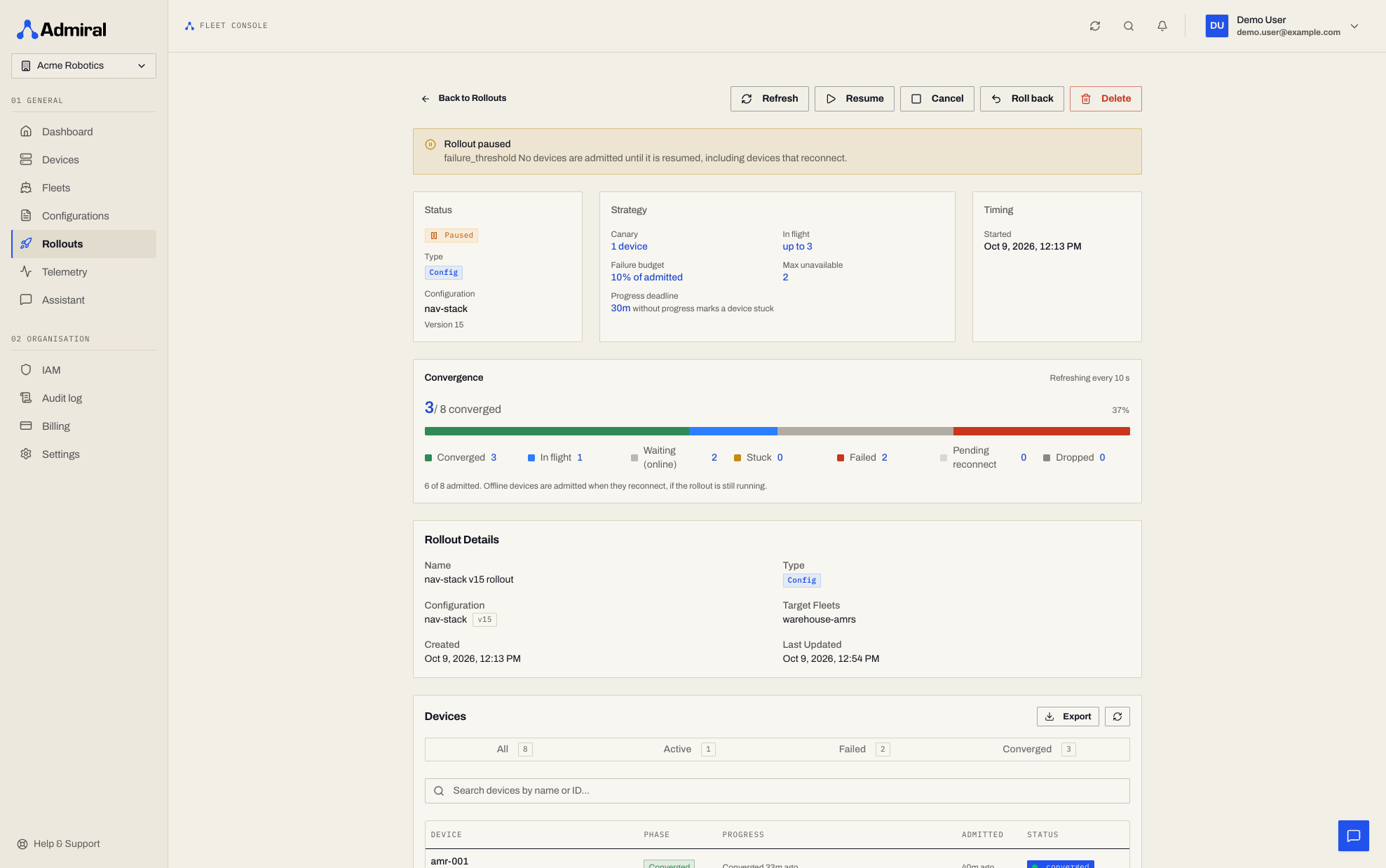
Controls
| Control | Effect |
|---|---|
| Pause | Stop admitting devices. Devices already updating carry on. |
| Resume | Continue admitting devices. |
| Cancel | Stop admitting devices and end the rollout. Devices that already received the new version keep it; use Roll back to revert them. |
| Roll back | Send every admitted device back to the version it had before this rollout. Devices that were never admitted are not touched. Configuration rollouts only; reboots, restarts, and system updates cannot be reverted, so Roll back on those stops the rollout like Cancel. |
Each control except Resume asks for confirmation. Pause, Resume, Cancel, and Roll back are available on rollouts created with a strategy; rollouts created before strategies existed only offer Stop.
On-device rollback
Independently of the rollout, devices that cannot keep a new workload configuration running fall back to their previous configuration automatically and report it. That device shows as Failed in the rollout and counts against the failure budget. See Automatic Workload Rollback.
Rollouts from the CLI and API
# Roll the version pinned in fleet.yaml (spec.configuration {id, version}) out to that fleet
admrl rollout create -f fleet.yaml --canary 1 --max-in-flight 20 \
  --max-unavailable 2 --failure-threshold 0.1 --progress-deadline 30m --dry-run   # preview per-device changes
admrl rollout create -f fleet.yaml --canary 1 --max-in-flight 20 --watch

admrl rollout status <id|name> --watch     # one line per device phase change, counts footer
admrl rollout pause <id|name>
admrl rollout resume <id|name>
admrl rollout cancel <id|name>
admrl rollout rollback <id|name>
--failure-threshold is a fraction (0.1 = 10 %), unlike the percentage in the dashboard.
| Method and path | Purpose |
|---|---|
POST /v1/rollouts | Create. Send strategy {canary, maxInFlight, maxUnavailable, failureThreshold, progressDeadline}; the older batch_size is still accepted and becomes maxInFlight. |
GET /v1/rollouts/{id} | Status (including paused and pausedReason: operator, failure_threshold, max_unavailable, canary_failed), strategy, and counts. |
GET /v1/rollouts/{id}/devices | Per-device phase, admitted and converged times, last progress, stuck since, error. |
GET /v1/rollouts/{id}/stream | Server-sent events: rollout events with counts, device events with phase and progress. |
POST /v1/rollouts/{id}/pause, /resume, /cancel, /rollback | Controls. Optional reason, up to 500 characters. |