Users, Groups, and Permissions
Admiral uses an organization-based multi-tenant model to manage access control across your device fleet.
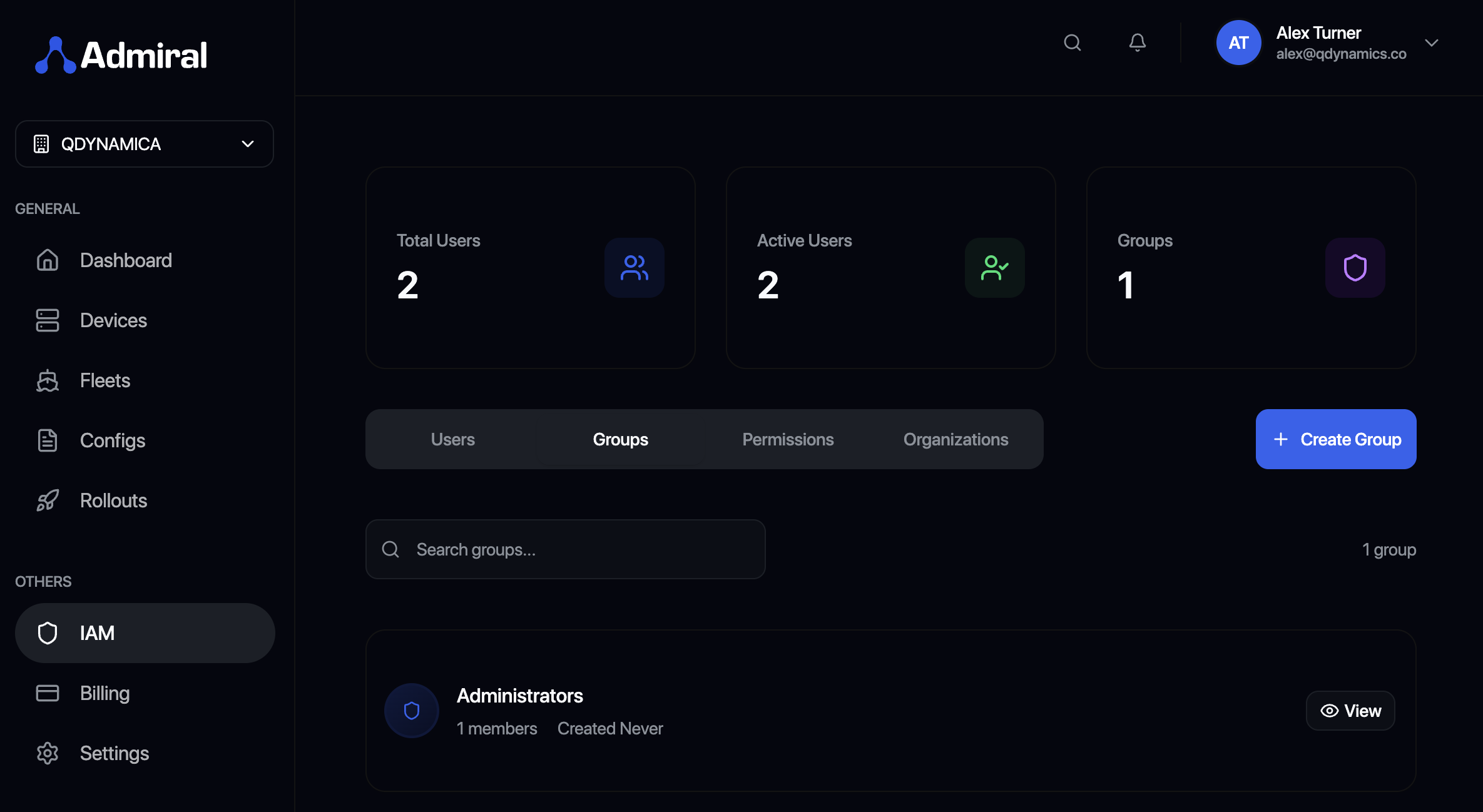
Organization Structure
Every Admiral account belongs to an Organization. An organization contains:
- Users: Individual people with access to Admiral
- Groups: Collections of users with similar roles
- Devices: The physical devices being managed
- Fleets: Logical groupings of devices
- Permissions: Rules defining who can access what
User Management
Inviting Users
- Go to Settings > Users
- Click Invite User
- Enter the user's email address
- Select a role: Admin or Member
- Click Send Invitation
The user receives an email with a link to join your organization.
User Roles
Admin
Full system control:
- Create and delete fleets
- Modify configurations
- Execute rollouts
- Manage users and permissions
- Access billing and settings
- View all devices and logs
Member
Restricted access:
- View assigned fleets and devices
- View configurations (cannot modify)
- View logs and telemetry
- Cannot execute rollouts
- Cannot manage users
- Cannot access billing
Default permissions:
Members have read-only access by default. Grant specific permissions through group membership.
Managing Existing Users
Edit user:
- Change role (Admin ↔ Member)
- Update email address
- Reset password (sends reset email)
Remove user:
- Revokes all access immediately
- User can be re-invited later
- Audit logs retain user activity history
Groups
Groups simplify permission management by allowing you to assign permissions to collections of users.
Creating Groups
- Go to Settings > Groups
- Click New Group
- Enter a descriptive name (e.g., "Field Engineers", "DevOps Team")
- Add users to the group
- Save the group
Group Membership
Add users to a group:
- From the group detail page, click Add Members
- Select users from the list
- Click Add
Remove users from a group:
- From the group detail page, find the user
- Click Remove
User can belong to multiple groups:
Permissions are cumulative. If a user is in multiple groups, they receive the combined permissions of all groups.
Permissions
Permissions define which fleets a group can access and what actions they can perform.
Assigning Fleet Permissions
- Go to Settings > Permissions
- Click New Permission
- Select a Group
- Select one or more Fleets
- Choose Permission Level
- Save the permission
Permission Levels
View
- See fleet overview and device list
- View device telemetry and logs
- View configurations (cannot modify)
Operate
- All "View" permissions, plus:
- Execute device actions (reboot, restart container)
- Push configurations to devices
- Capture screenshots on-demand
Manage
- All "Operate" permissions, plus:
- Modify fleet configurations
- Execute rollouts
- Add/remove devices from fleet
- Modify fleet settings
Example permission structure:
Group: "Field Engineers"
Fleet: "Retail-Stores-EastCoast"
Level: Operate

Result: Field engineers can view and operate devices in East Coast
        retail stores, but cannot modify configurations or execute
        rollouts.
Permission Inheritance
- Admins always have full access to all fleets
- Members only have access to explicitly granted fleets
- No permission = no access (user won't see the fleet)
Best Practices
Principle of Least Privilege
Grant users the minimum permissions needed for their role:
- ✅ Field technicians: Operate on their regional fleet
- ✅ Developers: Manage on staging fleets
- ✅ Operations: Manage on production fleets
- ❌ Everyone: Admin access
Use Groups, Not Individual Permissions
Instead of granting permissions to individual users:
- Create groups based on roles
- Assign permissions to groups
- Add users to appropriate groups
Benefits:
- Easier to manage as team grows
- Consistent permissions across similar roles
- Simpler onboarding/offboarding
Regular Access Reviews
Periodically review:
- Who has admin access (keep this list small)
- Group memberships (remove users who changed roles)
- Permission assignments (ensure they're still appropriate)
Audit Logging
Admiral logs all permission-related activities:
- User invitations and removals
- Role changes
- Group membership changes
- Permission grants and revocations
Access audit logs at Settings > Audit Log.
Next Steps
Learn how to automate workflows with API Tokens and Webhooks.