Provisioning Over Bluetooth
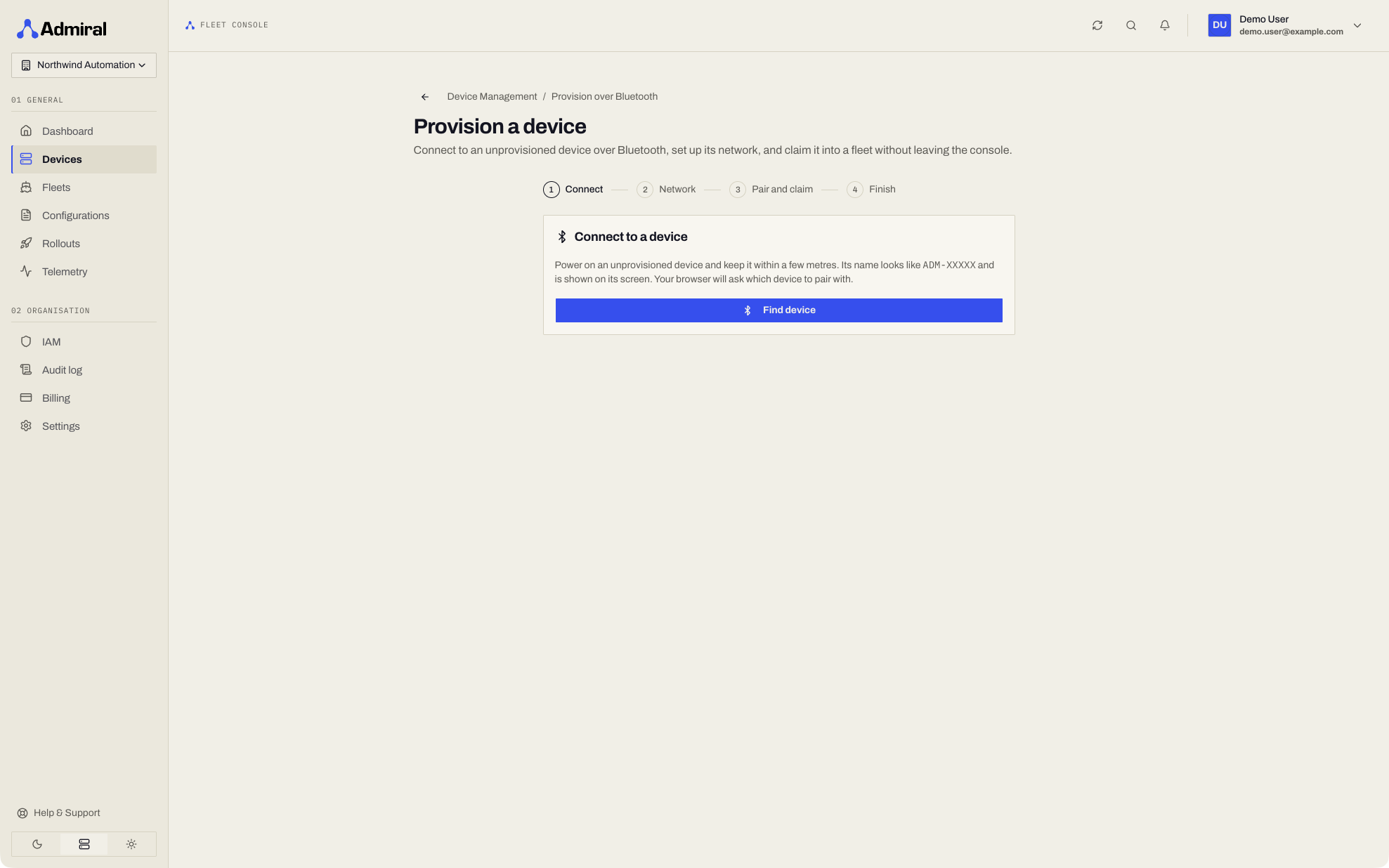
Set up a new device's network and claim it into a fleet straight from your browser, over Bluetooth. No keyboard, monitor, or companion app is needed on site; this is the quickest way to bring up headless robots, gateways, and devices mounted out of reach.
Open Devices > Provision over Bluetooth (https://app.admrl.co/devices/provision). The Add Host dialog also links here (Device not set up yet? Provision it over Bluetooth).
Requirements
- Browser: Chrome or Edge on desktop, or Chrome on Android. Safari and Firefox do not support Web Bluetooth; the page tells you if your browser cannot be used and offers Add host with a pairing key instead.
- Proximity: your computer or phone within Bluetooth range of the device.
- Device: an unclaimed Admiral device (new, or factory reset). It advertises as
ADM-XXXXX.
Steps
The wizard runs through Connect, Network, Pair and claim, and Finish. A collapsible Activity log shows every step as it happens.
1. Connect
Click Find device and choose the device (ADM-XXXXX) in the browser's device chooser. If the device is already claimed, the wizard says so and offers Repair this device over Bluetooth, which opens Bluetooth Field Service.
2. Confirm the Pairing Code (devices with a screen)
A device with a display shows an 8-digit pairing code. Type it into the browser and click Confirm code. The browser checks the code itself before sending anything, which proves you are connected to the device in front of you and not to an impostor nearby. Three wrong codes end the session.
Headless devices skip this step.
3. Network
A summary card shows the device's model, firmware, displays, and setup state. Click Identify to make the device beep if you have several in front of you.
- If the device is already online (for example on wired Ethernet), choose Continue with this connection.
- Wi-Fi: pick a scanned network (signal strength and security are shown) or Enter a network name manually. Saved networks can be forgotten from the list. Leave the password blank to keep a saved one.
- Ethernet: DHCP by default.
- Both tabs offer Use a static IP address (address in CIDR form, gateway, DNS) and Use an HTTP proxy.
Click Connect and continue. Joining a network can take up to a minute.
4. Pair and Claim
The device sends its pairing key over the encrypted Bluetooth session and the dashboard validates it. Enter a Device name, choose a Fleet, and optionally set a latitude and longitude. Click Claim device.
5. Finish
The wizard waits for the device to check in to Admiral Cloud, completes setup, and disconnects Bluetooth. Choose Open device, Finish now, or Provision another device.
Security
- Every Bluetooth session is end-to-end encrypted at the application layer with a fresh key exchange; Wi-Fi passwords are never readable back over Bluetooth.
- The 8-digit pairing code defends devices with a screen against relay attacks during setup.
- Once a device is claimed, it no longer accepts open setup sessions. Only users authorised in Admiral Cloud can open a field service session.
For the full protocol, see BLE Provisioning Protocol.