Automatic Device Provisioning & Factory Pre-Flashing
Skip manual pairing during hardware assembly and deployment by downloading pre-enrolled Admiral OS images that claim themselves into your fleet on first boot.
What is Auto-Provisioning?
A provisioning profile belongs to a fleet. Images downloaded from it (with Include Provisioning on):
- Skip manual pairing: The device claims itself into your organisation on first boot; nobody needs to type a pairing key.
- Join the right fleet: The device lands in the profile's fleet and immediately receives that fleet's configuration and network settings.
- Carry your tags: Tags on the profile are applied to every device it provisions, so you can tell batches apart.
- Pull the workload straight away: The fleet's container workload is pulled and started as soon as the device is online.
Creating a Provisioning Profile
- In the Admiral Dashboard, navigate to Fleets and select your target fleet.
- Select the Provisioning tab.
- Click Create Profile.
- Fill in:
- Name: A descriptive identifier (e.g.,
OEM-Factory-AMR-Batch-2026). - Tags: Optional
key=valuepairs, separated by commas (e.g.,batch=2026-10, site=sydney).
- Name: A descriptive identifier (e.g.,
- Click Create Profile.
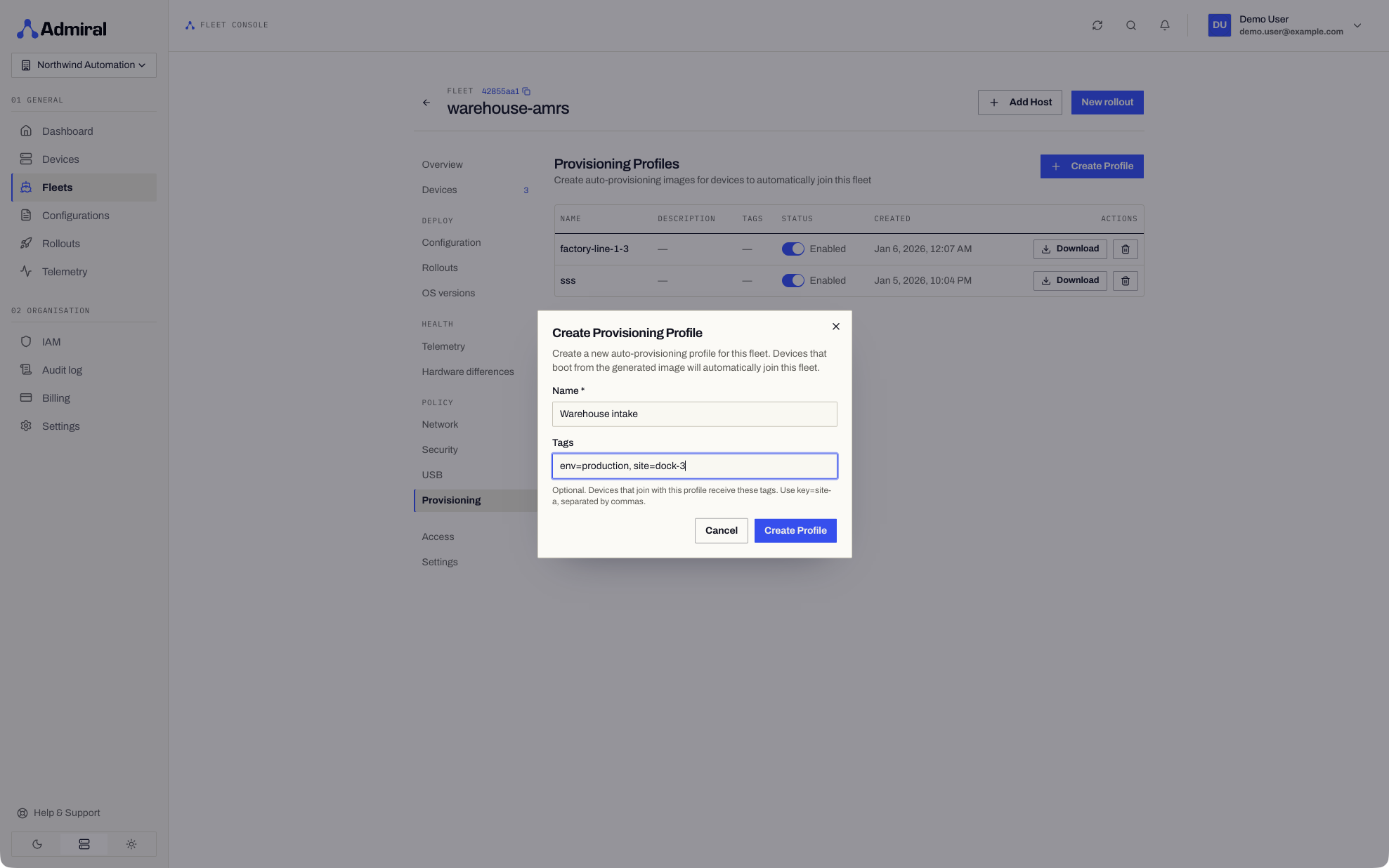
The setup guide creates a profile for you as step 3.
Deploying Provisioned Machines
- Download an image from the profile (see Download Options) with Include Provisioning on.
- Flash it to physical storage (NVMe SSD, eMMC, micro-SD, or a USB installer drive) using BalenaEtcher,
dd, or your manufacturing flashing jig. - Install the drive into your hardware and power on.
- Zero-touch execution: The device installs or boots, connects, claims itself into the fleet, synchronises with the Admiral Mesh, and starts its workload.
For devices that need site Wi-Fi set up on arrival, use Bluetooth provisioning from a browser instead.
Manufacturing & OEM Use Cases
Autonomous Mobile Robot (AMR) Assembly Lines
Pre-flash the primary robot navigation compute units during mechanical assembly. When the robot is powered on for its initial end-of-line testing, it immediately pulls the latest sensor drivers, maps, and odometry launch parameters without requiring a technician to plug in a keyboard or monitor.
Interactive Kiosks & Smart Showrooms
Ship fully assembled kiosks directly to customer retail locations with simple instructions: "Connect power and turn on." The unit configures its networking, activates its display workload, and registers with the central monitoring fleet automatically.