On-Device Console
Every Admiral device with a display shows a status console on its screen while no interactive workload is in the foreground. It tells whoever is standing at the machine what state it is in, shows the information needed to pair it, and offers local Wi-Fi setup and diagnostics from a USB keyboard.
The console runs on its own virtual terminal (VT2). An interactive workload takes the screen on VT3, and the display switches back to the console automatically when that workload stops.
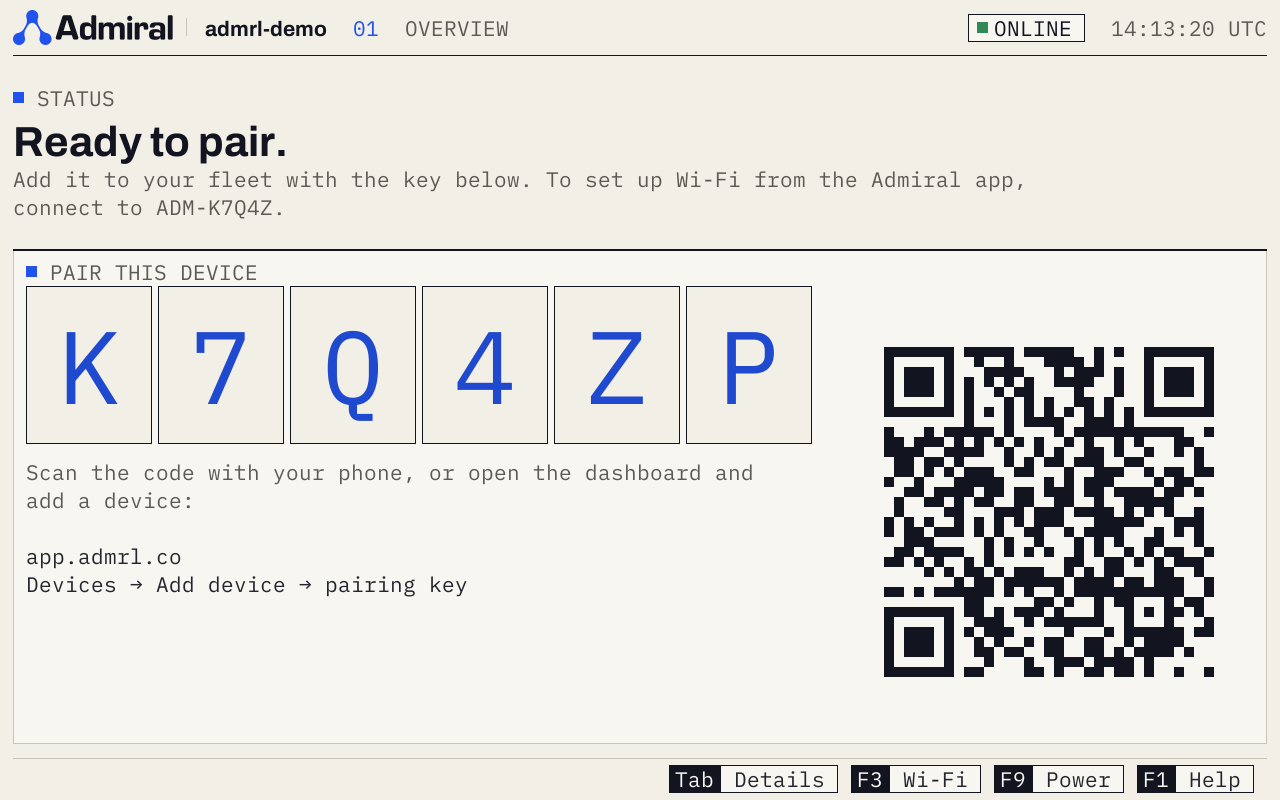
Overview Screen
A single large status line shows what the device is doing:
| Status | Meaning |
|---|---|
| Starting up | Booting the platform. |
| Installing Admiral | The installer is writing Admiral to the internal disk. |
| Ready to pair | Unclaimed and online. The pairing key and a QR code are shown. |
| Pairing code | A browser is setting the device up over Bluetooth; the 8-digit code to type into the browser is shown. |
| Connecting to Admiral | Online, establishing the Admiral Mesh connection. |
| Can't connect to Admiral | No route to Admiral Cloud. Run diagnostics (F2) or set up Wi-Fi (F3). |
| Waiting for a configuration | Claimed, but the fleet has no configuration assigned. |
| Starting | Pulling the image and starting the workload. |
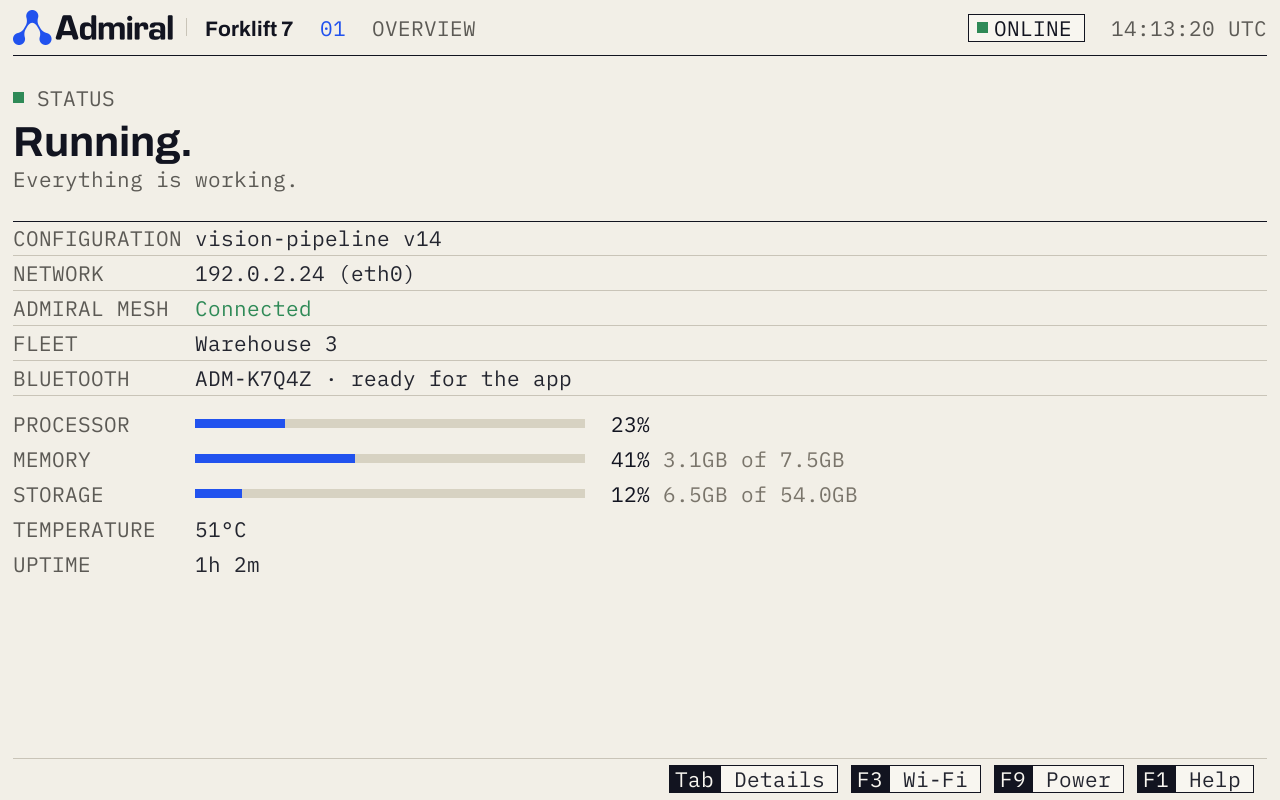
| Running | The workload is running. |
| Application stopped | The workload is stopped. |
| Maintenance mode | Diagnostics mode is on; the workload is held stopped. |
Below the status, the console shows the configuration and version, network, cloud connection, fleet, the device's Bluetooth name (ADM-XXXXX), and live CPU, memory, storage, and temperature.
Keyboard Shortcuts
The bar at the bottom of the screen shows the keys for the current screen, and on a touch screen you can tap them. F1 lists every key. Most keys also have a letter you can press instead.
| Key | Screen or action |
|---|---|
| F1 or ? | Help: every key |
| Tab or I | Details: device facts, pairing card, system information, and the live event stream |
| F2 or D | Diagnostics (press Enter, F5, or R to run again) |
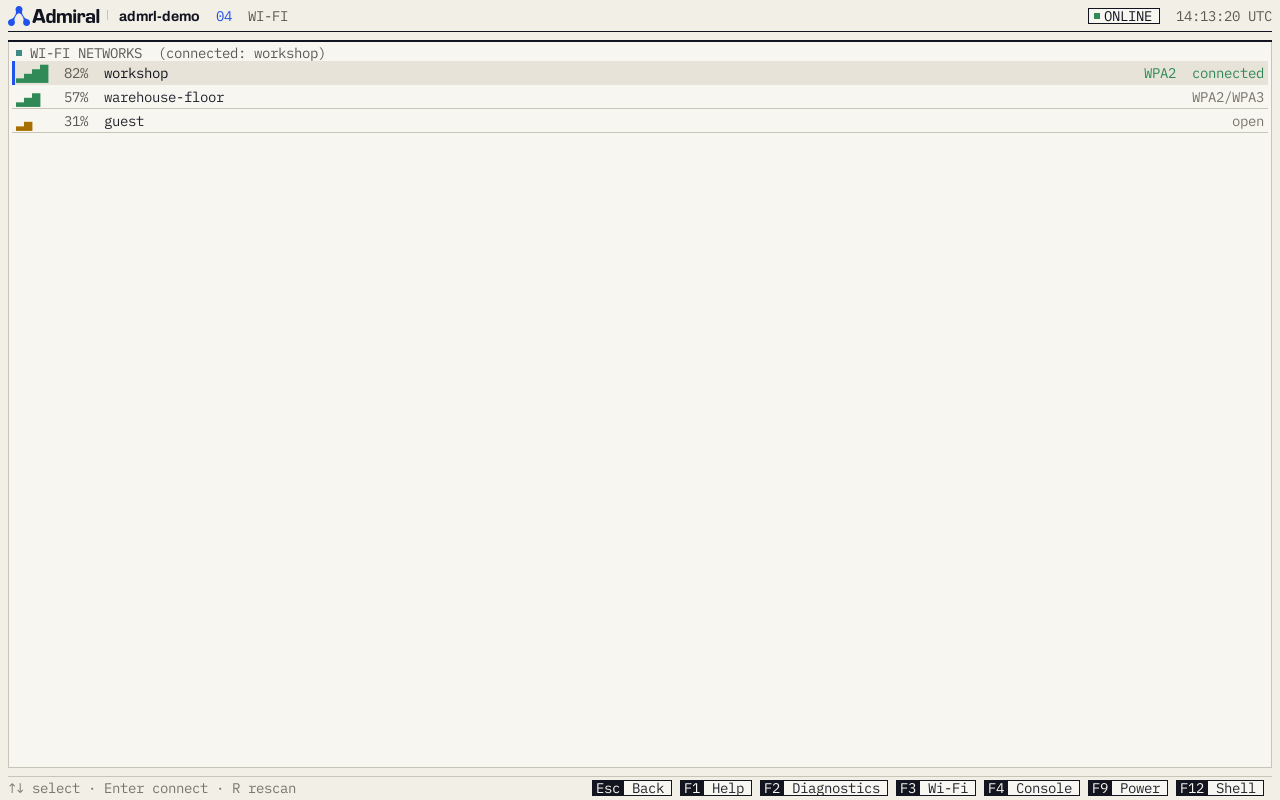
| F3 or W | Wi-Fi: scan (F5 or R rescans), pick a network, enter the password (Tab shows it), and connect |
| F4 or C | Console view, the classic dashboard; press again to go back |
| F9 or P | Power: reboot, power off, or diagnostics mode. Each needs a second Enter to confirm. |
| Ctrl+D | Enter diagnostics mode (the workload is held stopped) |
| F12 | Local shell (press F12 again to return). Hidden when the local shell is disabled on the device. |
| ↑ ↓ PgUp PgDn | Scroll the event stream |
| Esc | Back |
Diagnostics
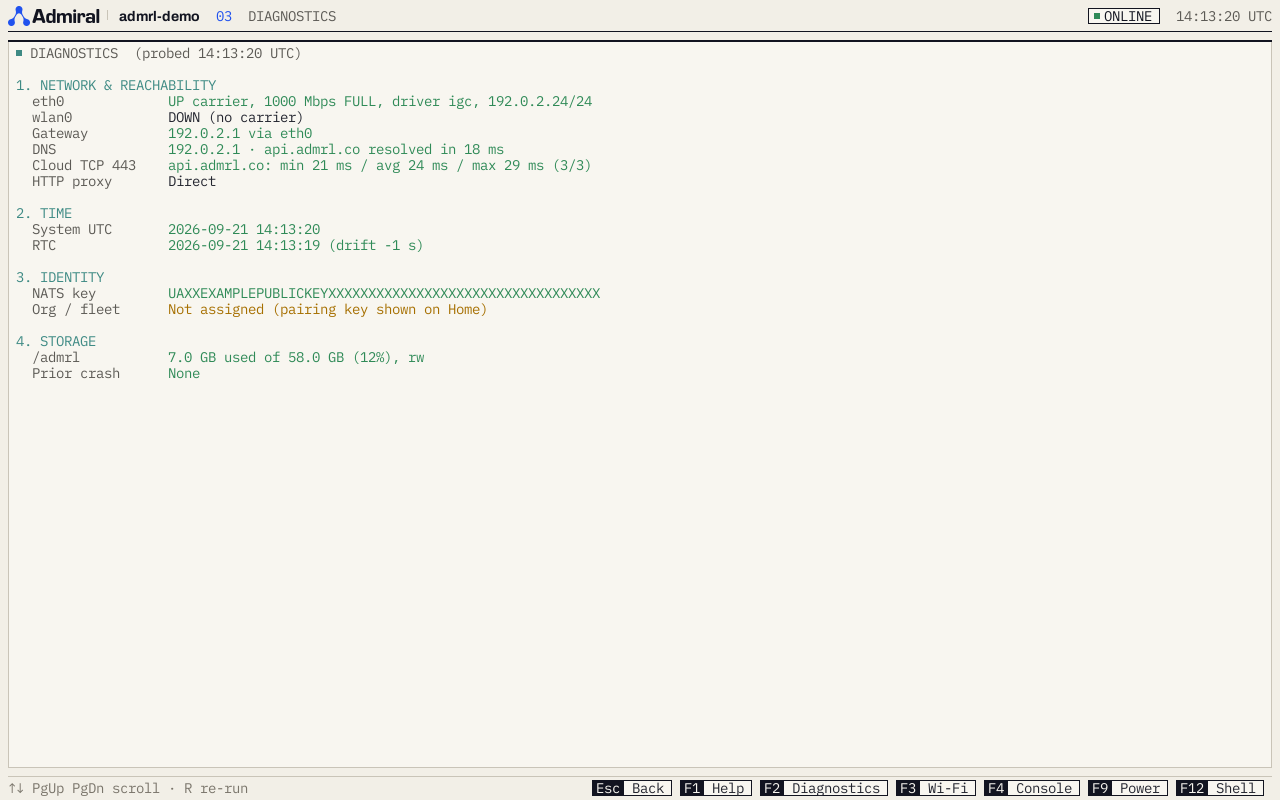
The Diagnostics screen checks network interfaces, gateway and DNS, DNS resolution and latency to Admiral Cloud, clock and real-time clock drift, device identity and cloud session, Bluetooth, filesystems and crash logs, boot slot, Secure Boot and firmware state, and thermals. The same report is available remotely over Bluetooth in Field Service.
Disk Unlock Prompts
If an encrypted device cannot unlock its disk automatically, the console shows an unlock code for remote unlock and also accepts the disk recovery key typed on a keyboard.