AdmiralAI, the Fleet Assistant
AdmiralAI is the assistant built into the Admiral dashboard. Ask it a question about your own fleet in plain language and it looks up the answer with your permissions: which devices are offline, why a workload keeps restarting, what changed overnight, what a rollout is doing. It can also search this documentation, link you to the right page, and open dashboard pages for you.
AdmiralAI reads freely. Anything that changes a device or a configuration is shown to you first and only runs when you click Approve.
Opening AdmiralAI
Choose the AdmiralAI chat button at the bottom right of any dashboard page, or press Cmd+J (macOS) or Ctrl+J (Windows and Linux). Press Esc or the close button to put it away.
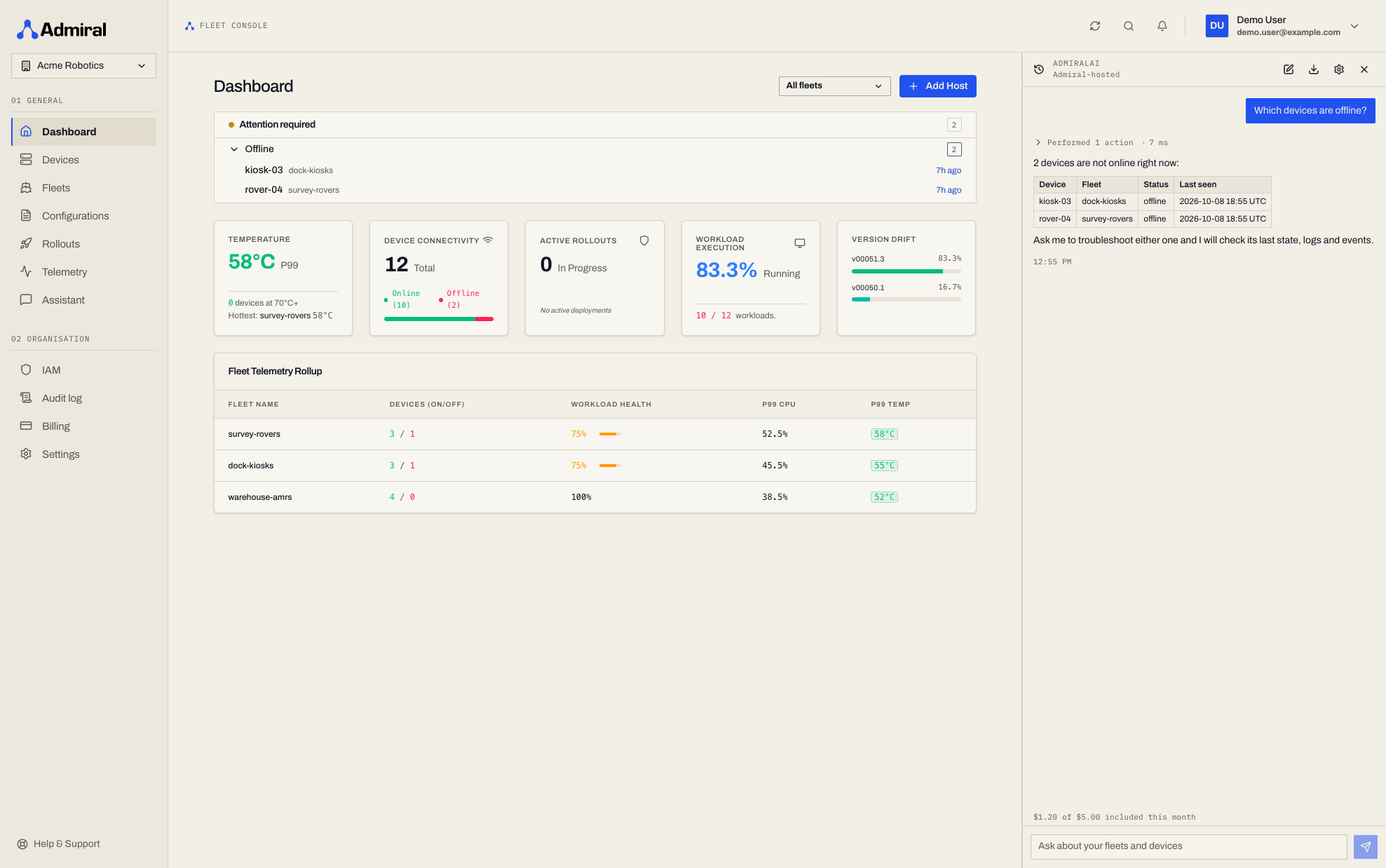
The panel docks on the right, under the header, and pushes the page aside. Drag its left edge to resize it (or focus the edge and use the arrow keys). On a phone or a narrow window it covers the page instead. Whether the panel is open and how wide it is are remembered in your browser.
The sidebar also has an Assistant entry, which opens the full history of your conversations (see Conversations and history).
What AdmiralAI Can Do
| Ask | What AdmiralAI does |
|---|---|
| "Which devices are offline?" | Lists devices by status, fleet, or a free-text match. |
| "Why is pick-03 not working?" | Troubleshoots the device: gathers its state, diagnosis, a live probe, recent error logs, events, workload, storage, clock, connectivity, and drift between assigned and applied configuration. It returns ranked findings with the evidence, the likely cause, what you can do now, a link to the relevant documentation page, and whether Admiral support is needed. |
| "Can the kiosk reach Admiral?" | Runs a connectivity check: link, DNS, TCP, clock, and transport, and lists the usual causes (captive portal, DNS, firewall, TLS inspection, clock skew). |
| "Why does this workload keep crashing?" | Explains crash loops, exit codes, out-of-memory kills, image pull errors, signature and USB policy denials, and stuck updates, with short log excerpts. |
| "How healthy is the production fleet?" | Builds a fleet health report: devices by status, how long offline devices have been gone, and devices grouped by their most likely problem. |
| "Show me the logs for rk3588" | Reads logs, events, metrics, network, workload state, screenshots, and device documents. |
| "How do I set up a private registry?" | Searches this documentation and links the pages it used. |
| "Take me to the logs for rk3588" | Opens the page in the dashboard. The panel stays open beside it. |
AdmiralAI uses the same fleet tools as the MCP server, plus a few that only make sense in the dashboard, such as opening a page.
Pages and time
AdmiralAI knows which page you are looking at, so "why is this device offline?" works from the device's page without naming it. When the page shows a device, fleet, configuration, or rollout, the name appears in the message context.
It also knows your local time zone. "What happened overnight?" is read as overnight where you are, not in UTC.
Troubleshooting examples
- A device stopped responding. On its page, ask "What is wrong with this device?". The answer lists findings in order of severity. For an offline device it explains when the device was last seen, what can still be determined from its last report, and what to check on site.
- A workload will not start. Ask "Why is the workload failing on dock-07?". AdmiralAI reports the restart count, last exit code, and whether an image, a policy, or memory is involved. Log excerpts need the Telemetry add-on; without it AdmiralAI says so and still reports the rest.
- A rollout is stuck. Ask "Why did the last rollout fail?" to see its status, the devices that are stuck and in which phase.
- Where did that setting go? Ask "Take me to the update window for the warehouse fleet" and AdmiralAI opens the page.
The on-device probe runs at most once every 5 seconds per device. When that limit applies, AdmiralAI reuses the previous probe result and says so. Screenshots can be refused with a "try again shortly" message when many are in flight.
Approvals
AdmiralAI acts with your own permissions. It cannot see or do anything your account could not do in the dashboard.
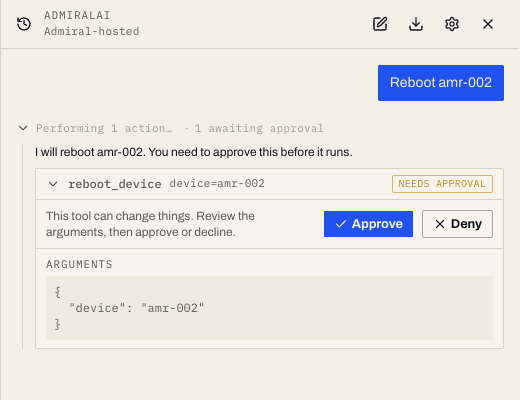
Actions that only read or open pages run straight away. Anything that changes something is paused as an approval card showing the action and its arguments:
- rebooting a device
- starting, stopping, restarting, or recreating a workload
- creating, pausing, resuming, cancelling, or rolling back a rollout
- patching a device document, and adopting or discarding on-site settings
- duplicating a fleet or a configuration
Review the arguments and choose Approve to run it, or Deny to skip it. Nothing runs until you approve, and AdmiralAI does not report a change as done unless the result confirms it.
One Organisation per Chat
Each chat is tied to the organisation that was selected when it started. Every tool call in that chat uses that organisation, and AdmiralAI has no way to switch to another one. If you switch organisation in the dashboard, AdmiralAI starts a fresh chat for the new organisation and keeps the old one saved under the organisation it belongs to.
Conversations and History
Conversations are saved in your browser, per user and organisation. They are not stored on your account, so they do not follow you to another browser or device.
- New chat in the panel header starts a clean conversation.
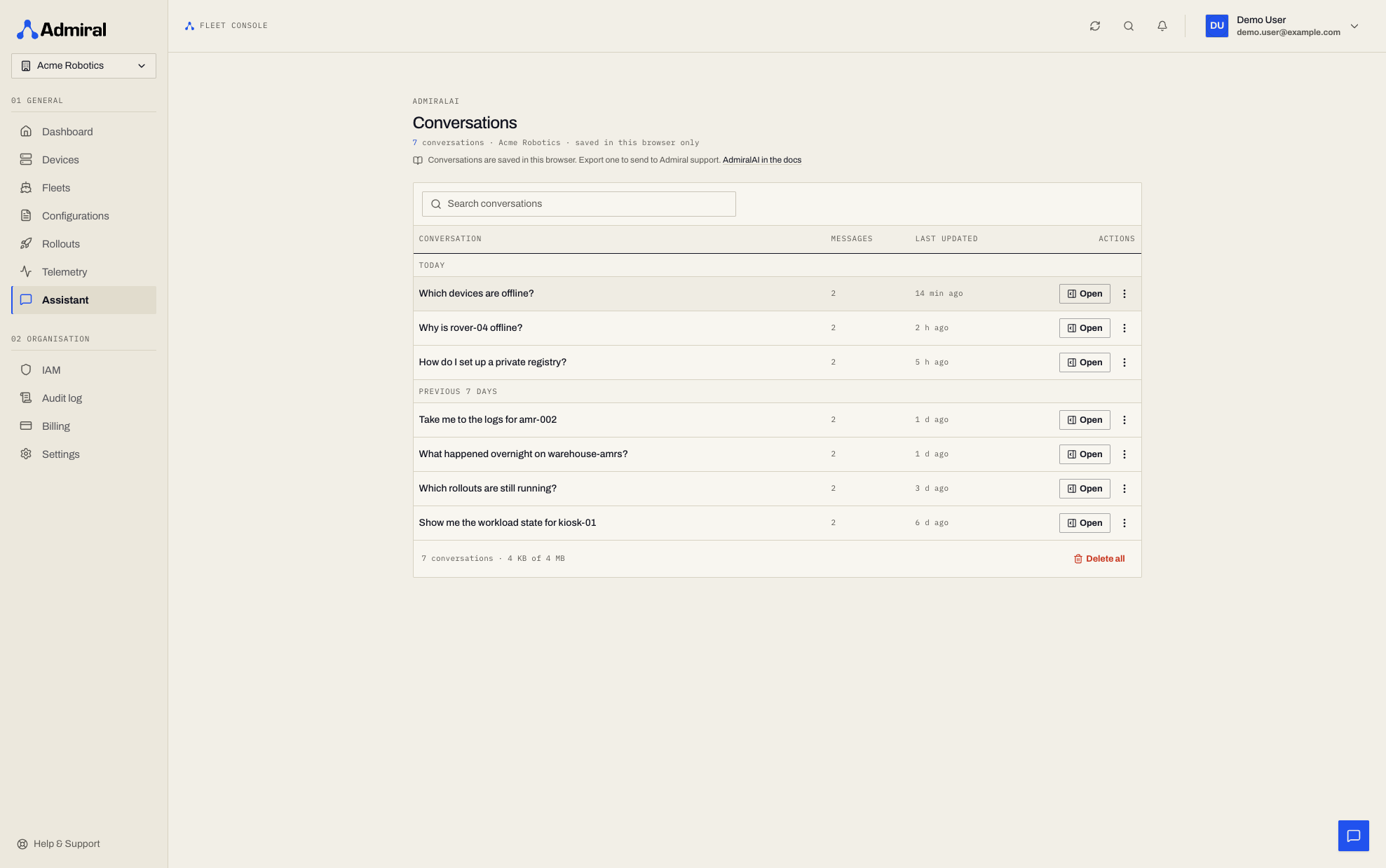
- The Conversations button at the left of the panel header lists your recent chats. View all (or Assistant in the sidebar) opens the full history page, where you can search, reopen, rename, export, and delete conversations, delete all of them at once, and see how much storage they use.
- Up to 50 conversations and about 4 MB are kept per user and organisation. When either limit is reached, the oldest conversations are removed first. The conversation you are in is never removed to make room.
Exporting a chat
Choose the export button in the panel header, add an optional note about what went wrong, and choose Download JSON. The file contains the conversation, including tool calls and their results, plus the page you were on and your note. Your API key, session token, and common credential patterns are replaced with [redacted]; your email address and organisation name are included.
Send the file to Admiral support, for example from Help & Support in the dashboard, with a description of what you expected. Admiral support can review the exported chat to see what AdmiralAI saw and did.
Providers
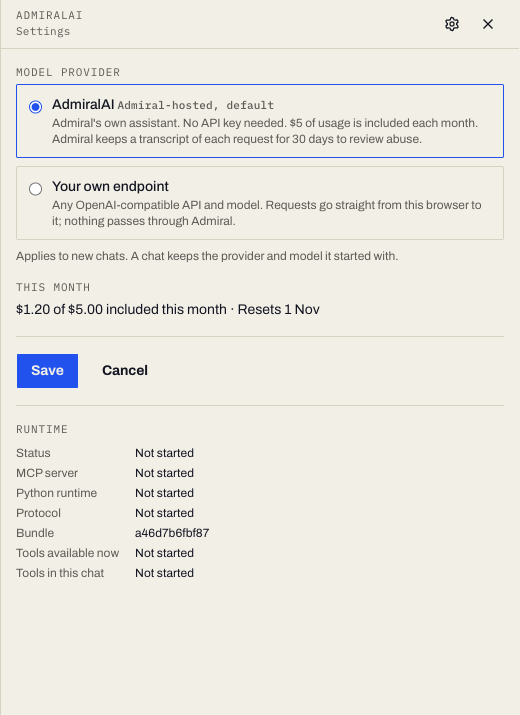
AdmiralAI can run on two kinds of model provider. Open the settings (gear) button in the panel header to choose.
| AdmiralAI (Admiral-hosted) | Your own endpoint | |
|---|---|---|
| Setup | None. This is the default. | A base URL, an API key, and a model name. |
| Who runs the model | Admiral, through Admiral Cloud. | Whoever runs the endpoint you enter. |
| Cost | $5 of usage per month included, then metered. See Usage and limits. | Whatever your provider charges. |
| Where requests go | Browser, then Admiral Cloud, then the model provider. | Browser directly to your endpoint. |
Your own endpoint
Choose Your own endpoint and enter:
- Base URL of any OpenAI-compatible API, for example
https://api.openai.com/v1. Do not put credentials in the URL. - API key. Choose whether to remember it on this device (browser local storage, until you clear it) or for this tab only (gone when you close the tab).
- Model, typed, or picked from the list the endpoint reports after you choose Test connection.
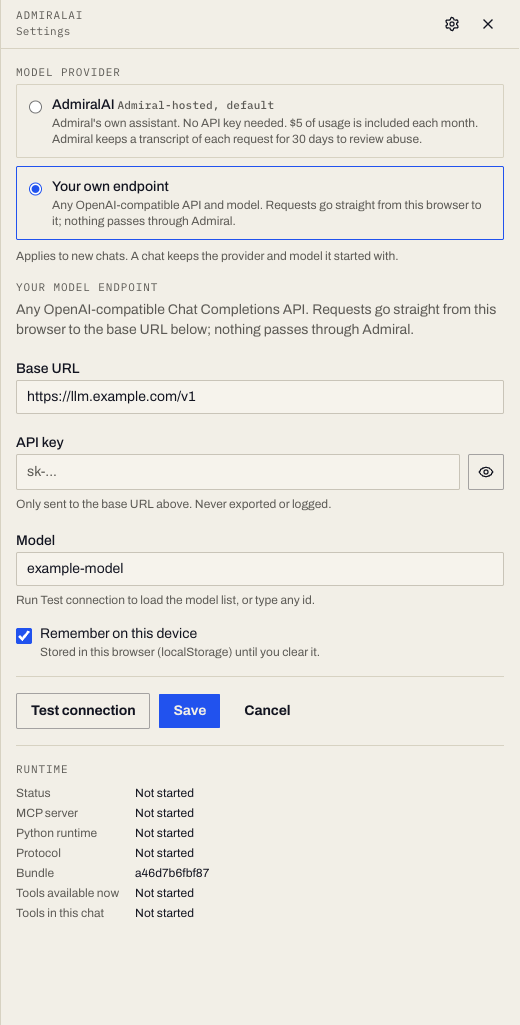
The browser calls your endpoint directly. Admiral does not see your key or your conversation, and the hosted limits and pricing do not apply. Tool calls still go from the browser to Admiral with your own session, as for the hosted provider.
The dashboard is served over https, and browsers block pages from calling plain http:// addresses (the mixed-content rule). Use an https:// endpoint. The only exception is a loopback address such as http://localhost:11434, which browsers allow. If your endpoint is on a private network, put it behind https, or run a local proxy that does.
Your own endpoint must also allow requests from the dashboard's origin (CORS), because the browser makes the request.
Usage and Limits
What is included
Every organisation gets $5 of AdmiralAI usage included per monthly billing period. The panel shows where you are, for example "$1.20 of $5.00 included this month", and the settings view shows when the period resets.
| Organisation | What happens at $5 |
|---|---|
| In a trial, or with no payment method | AdmiralAI stops until the next period. Add a payment method to continue. |
| Paying, with a payment method or invoice terms | Usage continues, billed per token, until total usage for the period reaches a monthly cap (default $50, including the $5). When it is reached AdmiralAI stops until the next period. Admiral support can change the cap. |
Usage during a trial is free but counts against the $5.
How it is billed
Usage is metered in four token classes, each priced per 1 million tokens: input, cached input, cache write, and output. Prices appear in your organisation's billing details. The invoice shows the usage and an Included Assistant usage credit line that offsets the first $5 of it. See Plans & Billing.
Your own endpoint is not metered by Admiral.
Rate limits
To keep AdmiralAI responsive for everyone, the hosted provider applies these limits:
- 10 new questions per minute per user, with bursts of up to 5.
- Up to 120 tool steps per minute per user.
- 2 replies streaming at the same time per user.
- A daily fair-use allowance for each user and for each organisation. It is based on the actual cost of your usage rather than raw tokens, so a long investigation with many tool steps does not use it up. It resets at 00:00 UTC, and the panel shows how much you have used once you pass half.
- A limit on conversation length. A very long conversation is refused with a message to start a new chat; this also keeps cost down, so start a new chat for a new topic.
- A limit on tool rounds for a single question, to stop runaway loops.
When a limit is hit, the panel says which one and, for rate limits, how long to wait.
Data Handling
For the Admiral-hosted provider:
- Each message is sent from your browser to Admiral Cloud, which forwards it to the model provider and asks for a provider that does not collect or train on request data.
- Each request carries the conversation so far, including the results of tool calls (device names, status, log excerpts, and so on).
- Admiral keeps a transcript of hosted conversations for 30 days, for abuse review, and then deletes it. Access is restricted and audited.
- Conversations are not copied into your organisation's audit log.
- Your conversation history in the panel is a separate copy kept in your browser (see above).
For your own endpoint, Admiral does not receive the traffic. What your provider retains is governed by that provider.
In both cases AdmiralAI only has access to what your account can read, and approval gates stop it from changing anything on its own.
Prompt injection
Text that devices and users supply, such as device names, hostnames, log lines, labels, and error messages, ends up in what AdmiralAI reads. A malicious string in a log line could try to steer an assistant. AdmiralAI is built to resist this: instructions inside tool results and device-reported text are treated as data, requests are strictly validated, only an approved list of tools is available, and every change needs your approval.
These measures reduce the risk; they are not a guarantee. Read approval cards before you approve, especially when the request came after AdmiralAI read logs or names you do not control, and keep the permissions on accounts that use AdmiralAI to what they need. See Users, groups, and policies.
Troubleshooting AdmiralAI
| Message or symptom | What to do |
|---|---|
| "You have used this month's included AdmiralAI credit." | Add a payment method in Billing to continue past the included $5, or wait for the next period. You can switch to your own endpoint in settings. |
| "Your organisation has reached its monthly AdmiralAI cap." | Ask an organisation billing admin or Admiral support to raise it. |
| "Your account is suspended, so AdmiralAI is off." | Resolve the account's billing standing in Billing. |
| "Today's AdmiralAI fair-use allowance is used up." | Wait until 00:00 UTC, when it resets, or switch to your own endpoint in settings. If your team regularly hits it, contact Admiral support. |
| Rate limit message with a wait time | Wait for the time shown and send again. |
| "This conversation is too long for the hosted model" | Start a New chat. |
| "AdmiralAI is unavailable right now." | Try again shortly, or use your own endpoint. |
| "Your session has expired." | Reload the page and sign in again. |
| Your own endpoint fails with a network error | Check the base URL and key, that the endpoint is https:// (or loopback), and that it allows requests from the dashboard (CORS). |
| AdmiralAI says log excerpts are unavailable | Log excerpts in workload failure explanations need the Telemetry add-on. |
| The panel says "Your own endpoint is not set up" | You selected your own endpoint without a base URL or model. Choose Open settings and fill them in, or switch to AdmiralAI. |
| An old chat is missing | Chats are per browser, user, and organisation, and the oldest are removed when the 50 chat or 4 MB limit is reached. |
If AdmiralAI gives a wrong or confusing answer, export the chat and send it to Admiral support from Help & Support with a note of what you expected.
Related
- Device State & Diagnostics for the checks AdmiralAI's troubleshooting builds on.
- MCP Server to use the same fleet tools from your own AI client.
- Plans & Billing for AdmiralAI pricing.