Developer Sessions: admrl dev
A developer session lets you iterate on a workload on a real device without publishing a configuration version for every change. admrl dev holds one device on a dev rootfs, keeps a directory on your machine synced into the workload, and runs commands there. When you end the session, the workload returns to its production image.
Use it for the edit, sync, run loop on a robot you cannot reproduce on a laptop: new navigation parameters, a rebuilt binary, a changed launch file. Use a normal configuration and rollout when a change is ready for the fleet.
Before You Start
| Requirement | Where it is set |
|---|---|
| Developer sessions switched on for the fleet. Off by default. | Fleet > Settings > Developer sessions |
Permission to start sessions (workload_dev). | See Who can start a session |
| The device is online and running a workload. | Device overview |
The admrl CLI, signed in. | CLI |
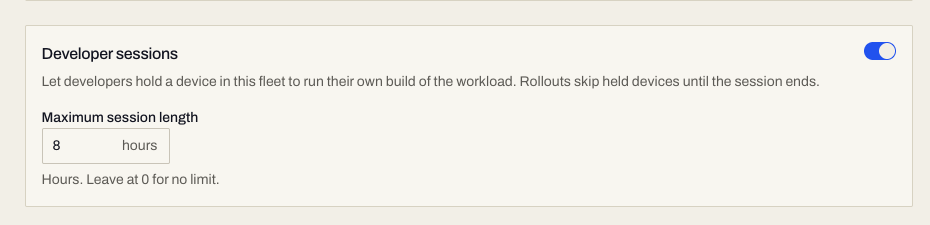
The Developer sessions card on Fleet > Settings has a switch and a Maximum session length in hours (0 for no limit). Turning the switch off asks for confirmation and ends the sessions that currently hold devices in the fleet.
The Loop
# 1. Hold the device and start syncing ./out into /opt/nav-stack in the workload
admrl dev start amr-001 ./out:/opt/nav-stack

# 2. Flush pending changes, then run a command in the workload
admrl dev run amr-001 -- ./nav-stack --selftest

# 3. Release the device when you are done
admrl dev end amr-001
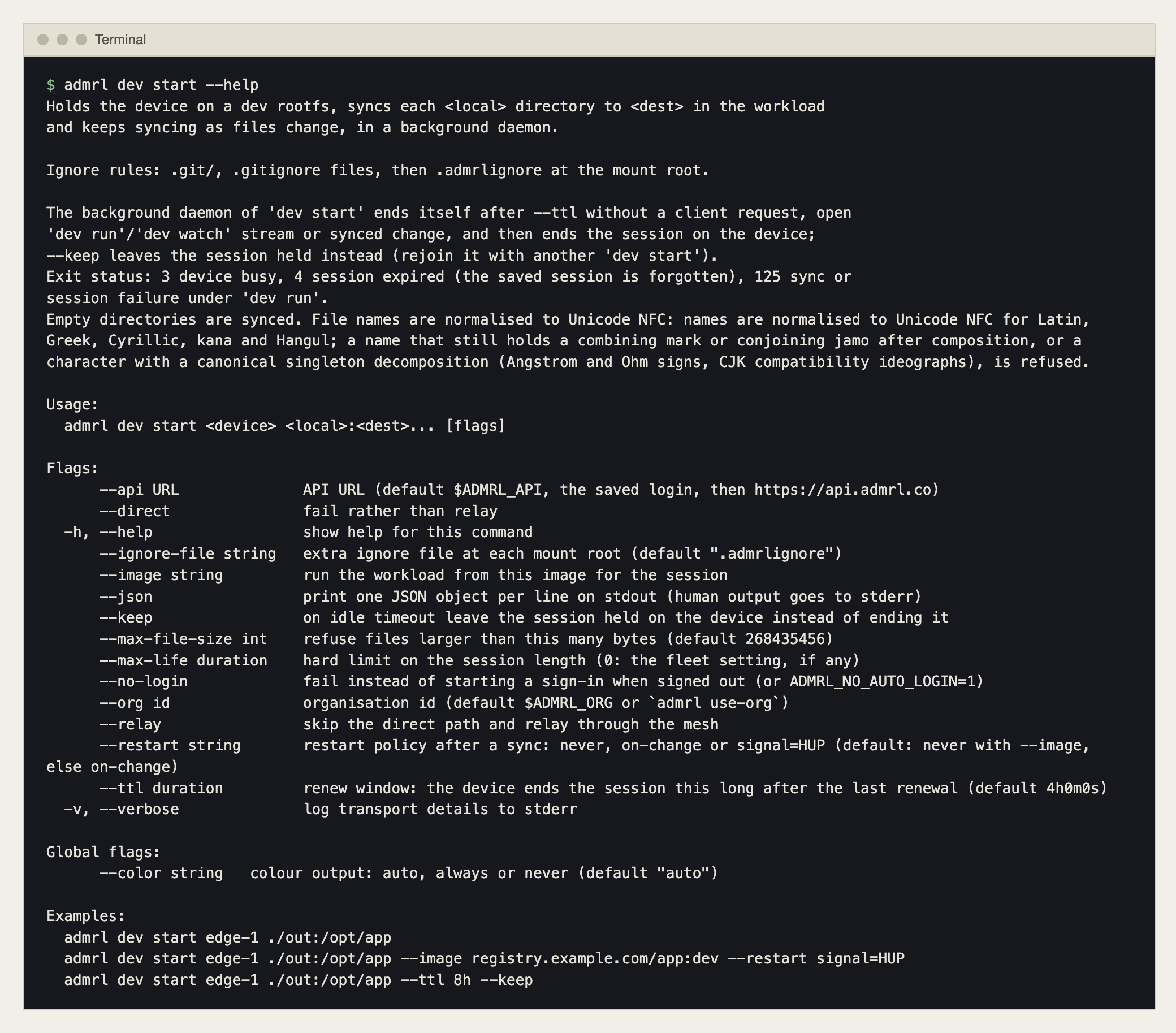
admrl dev start runs a background daemon on your machine. It watches each <local> directory and syncs changes to <dest> in the workload as files change, so after the first sync you only edit and rebuild. admrl dev run first flushes any pending changes, then runs your command in the workload; its exit code is passed through. With no command and a terminal, it opens a shell.
Commands
| Command | What it does |
|---|---|
admrl dev start <device> <local>:<dest>... | Hold the device on a dev rootfs and keep syncing each local directory. |
admrl dev run <device> [flags] [-- command args...] | Flush pending changes, then run a command in the workload. -i, -t, --cwd, --env K=V, --no-sync, --restart, --signal HUP are available. |
admrl dev sync <device> | Sync once, then exit. |
admrl dev watch <device> | Stream sync events. |
admrl dev status [<device>] | Show the developer sessions on this machine. |
admrl dev end <device> | Release the device. |
Add --json to any admrl dev command for one JSON event per line on stdout.
What gets synced
- Ignore rules are applied in this order:
.git/,.gitignorefiles, then.admrlignoreat the root of each mount.--ignore-filenames a different extra ignore file. - Empty directories are synced.
- Files larger than
--max-file-size(268435456 bytes by default) are refused. - File names are normalised to Unicode NFC. A name that cannot be normalised is refused (the CLI help lists the exact cases).
Running your own image or restarting after a sync
--image <ref>runs the workload from that image for the session instead of the configured one.--restartsets what happens after a sync:never,on-change, orsignal=HUP. The default isneverwhen you pass--imageandon-changeotherwise.admrl dev run --restartor--signal HUPrestarts or signals the workload after syncing.
admrl dev start amr-001 ./out:/opt/nav-stack --image registry.example.com/nav-stack:dev --restart signal=HUP
What You See in the Dashboard
While a session holds a device, its header shows a chip with the user and the time left, for example Dev session: demo.user, expires in 3h 37m (or no expiry). Hover it for when the session started, the mounts, and the image if you set one.

A held device is not counted as stuck or failed by a rollout, and a rollout does not count it toward completion.
Ending a Session
A session ends in any of these ways:
- You end it:
admrl dev end amr-001. The device stops the workload, restores its production image, and starts the configuration it should now run. By default that is the configuration that arrived during the session;--no-applyrestores the configuration that was current before the session instead. - It goes idle. The daemon ends the session after
--ttl(4 hours by default) without a client request, an openrunorwatchstream, or a synced change.--keepleaves the session held on the device instead;admrl dev startagain rejoins it. - It reaches its maximum length.
--max-lifesets a hard limit on your session. The fleet's Maximum session length also applies, and the shorter limit wins. - The fleet switch is turned off. Sessions in the fleet are ended.
Exit codes
| Code | Meaning |
|---|---|
3 | Device busy. |
4 | Session expired. The saved session is forgotten. |
125 | Sync or session failure under admrl dev run. |
Who Can Start a Session
- Starting a session requires the
workload_devpermission on the device. Administrators have it, and so do users whose role includes Root shell (SSH) (remote.shell), which implies it. The role editor has no separate developer-session capability. - Turning developer sessions on or off for a fleet, and setting the maximum length, requires Manage SSH access (
remote.manage) on the fleet. Without it the card's controls are disabled. - Developer sessions are separate from
admrl execandadmrl shell, which need Open workload terminal (remote.exec). See Permissions for Shell and Exec.
See Roles & Permissions for how to grant these.
Overriding One Device Without a Session
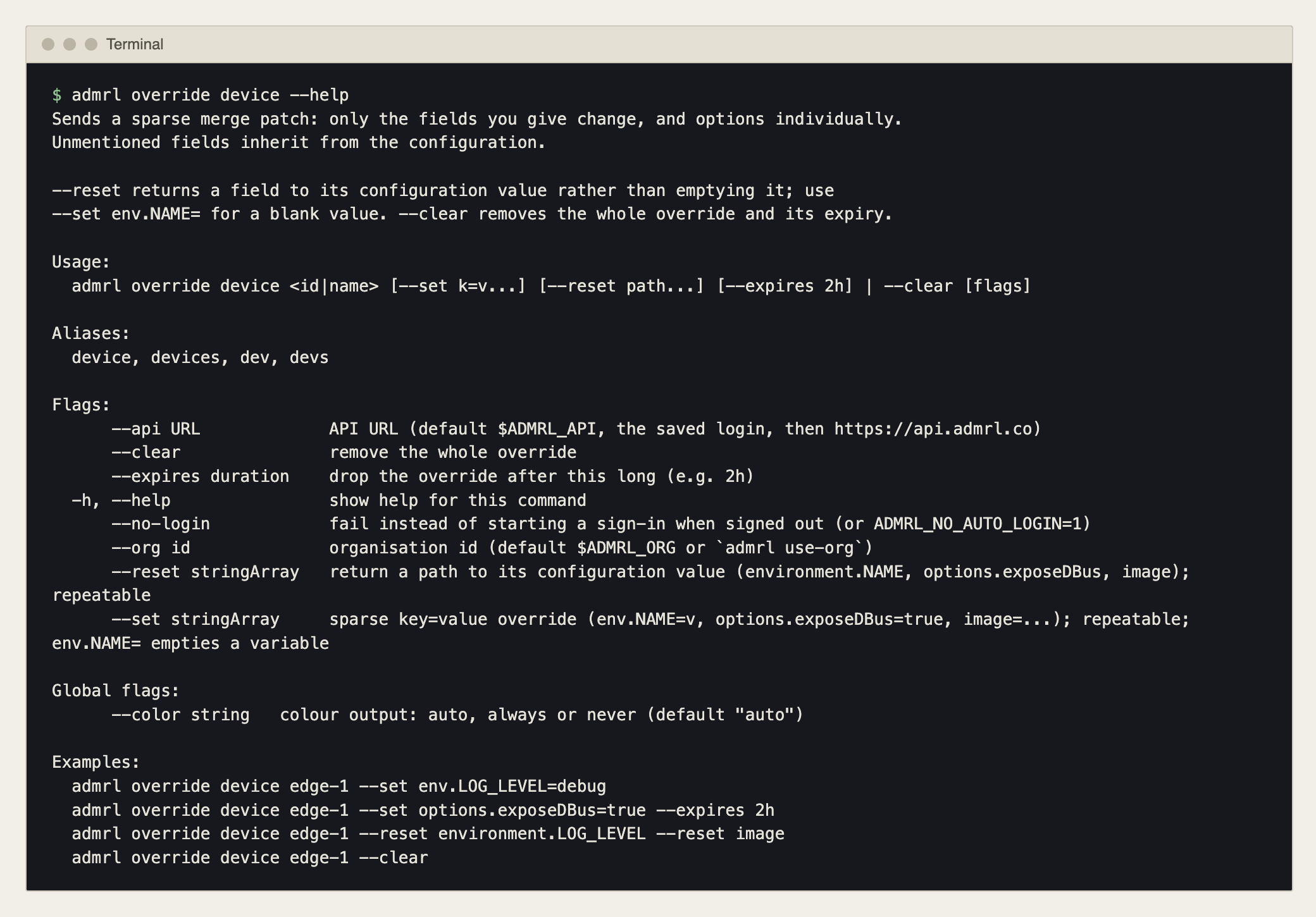
For a change that should persist for a while without holding the device, set a sparse override on that device, optionally with an expiry. It changes only the fields you give and inherits everything else from the configuration:
# Run a debug image on one device for two hours
admrl override device amr-001 --set image=registry.example.com/nav-stack:debug --expires 2h

# Return one field to its configuration value
admrl override device amr-001 --reset image

# Remove the override and its expiry
admrl override device amr-001 --clear
--set takes key=value pairs such as env.LOG_LEVEL=debug, options.exposeDBus=true or image=.... --reset returns a field to its configuration value rather than emptying it; use --set env.NAME= for a blank value. --expires 2h drops the override after that long. It is the same per-device override as Edit override in Device Documents.
Related
- Admiral CLI & Workload Access for sign-in,
admrl execandadmrl shell. - Configurations & Workloads for publishing what you built.
- Rollouts for taking a tested change to the fleet.