AirDetect™ Spatial Foot-Traffic Intelligence
AirDetect™ is Admiral's embedded spatial presence and foot-traffic intelligence service. It transforms any connected display, kiosk, robot charging dock, or edge device into an anonymous physical traffic sensor without requiring cameras, optical sensors, or dedicated external hardware gateways.
Input & Result Model
Traditional physical traffic tracking relies on expensive overhead optical sensors or invasive computer vision cameras. AirDetect replaces these with a simple, privacy-preserving Input $\rightarrow$ Result model powered by existing on-device Bluetooth radios:
- Input: Physical Venue Foot Traffic
▼ Passive Signal Interception on Standard Onboard Bluetooth Radio
- Admiral: Passive Edge Sensing (Admiral OS)
▼ Encrypted Telemetry Stream via The Admiral Mesh
- Result: Operational Intelligence (app.admrl.co)
Analytics & Operational Results
1. Real-Time Presence ("Visitors now")
Displays the current count of human visitors physically in proximity to your fleet devices right now. Metrics update continuously as people enter and leave the detection area.
2. Dwell Time Analytics
AirDetect records visit durations to evaluate physical engagement:
- Mean Dwell Time: Average visit duration across all detected visitors.
- Median Dwell Time: The true midpoint of customer stay times.
- P90 & P95 Percentiles: Identifies high-engagement customers and peak dwell thresholds.
- Dwell Categories:
- Bounce (
< 1 min): Passerby foot traffic that didn't stop. - Short (
1–5 mins): Brief stop or quick interaction. - Medium (
5–15 mins): Active browsing, queuing, or service engagement. - Long (
> 15 mins): Deep engagement, extended shopping, or dining visits.
- Bounce (
3. Proximity Interaction Zones
Classifies visitor proximity relative to your device:
- Immediate Proximity (Close): Right in front of the screen or kiosk (
< 1m). - Interaction Zone (Medium): Within direct viewing or engagement distance (
1–3m). - Vicinity (Far): General store or hallway foot traffic (
> 3m).
4. Ecosystem Distribution
Provides high-level grouping by device ecosystem without tracking personal identifiers:
- Apple Ecosystem: Discovered via Continuity and Nearby protocols.
- Generic Bluetooth: Modern Android devices, smartwatches, and fitness trackers.
Privacy-First Architecture (Zero PII)
AirDetect is engineered for strict privacy compliance (GDPR, CCPA, and Australian Privacy Principles):
- No Personal Data Collected: Personal identities, names, phone numbers, and persistent device identifiers are never collected or stored.
- Zero RF Broadcasts: After initial pairing, the sensing radio operates exclusively in passive listening mode and emits zero radio frequency signals.
- Unlinkable Over Time: Session metrics are strictly aggregated and cannot be correlated across days to track individuals.
Enabling AirDetect
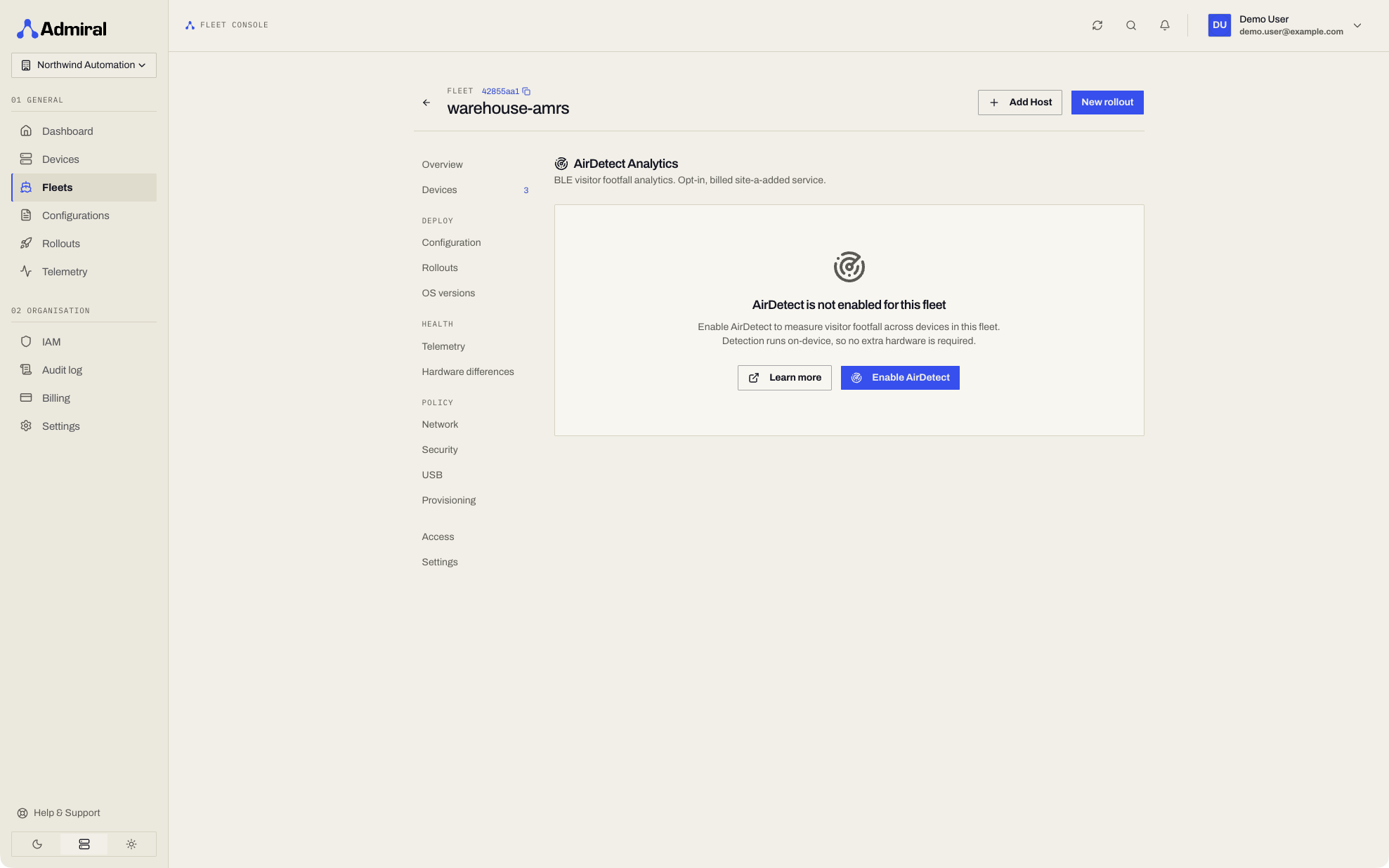
AirDetect is an opt-in value-added service in Admiral. To activate it for a fleet:
- Navigate to your Fleet Details page in the Admiral Dashboard.
- Select the AirDetect tab.
- Review estimated usage fees and terms.
- Click Enable AirDetect.
Until AirDetect is enabled, the fleet and device AirDetect pages show it as locked with the Enable AirDetect action, and the AirDetect API answers 402 with reason feature_fleet_scoped (see Plans & Add-ons).
Within seconds, the sensing policy is distributed to all devices in the fleet, and live visitor metrics begin streaming to the dashboard.
Exporting Session Data
For corporate reporting, data warehousing, and business intelligence, export raw session metrics via the Export CSV button:
session_id: Anonymized session identifier.device_uuid: Hardware identifier of the sensing device.first_seen: ISO 8601 arrival timestamp.last_seen: ISO 8601 departure timestamp.duration_seconds: Total visit dwell time.proximity_bucket: Primary interaction zone (close,medium,far).device_class: Inferred ecosystem (applevs.generic).
AirDetect REST APIs
In addition to the web dashboard, AirDetect capabilities are fully programmable via the Admiral REST API:
1. Live Presence ("Right Now")
Retrieve real-time visitor counts currently in proximity to a fleet or device:
GET /v1/fleets/{fleetId}/airdetect/now
X-Organization-ID: {orgId}
Returns active_visitors, average RSSI signal, and active dwell timers.
2. Time-Window Audience Attribution
Correlate footfall and dwell duration with specific operational windows (e.g. proof-of-play ad impressions or robot task cycles):
GET /v1/fleets/{fleetId}/airdetect/presence-window?start=2026-09-14T14:00:00Z&end=2026-09-14T14:30:00Z
X-Organization-ID: {orgId}
3. Batch Playout Attribution
Evaluate presence across dozens of discrete playback windows in a single request:
POST /v1/fleets/{fleetId}/airdetect/devices/{deviceId}/presence-windows
Content-Type: application/json
X-Organization-ID: {orgId}

{
  "windows": [
    { "id": "campaign-slot-01", "start": "2026-09-14T10:00:00Z", "end": "2026-09-14T10:00:30Z" },
    { "id": "campaign-slot-02", "start": "2026-09-14T10:05:00Z", "end": "2026-09-14T10:05:30Z" }
  ]
}
4. Automated CSV Export
Stream historical session records directly into your data warehouse:
GET /v1/fleets/{fleetId}/airdetect/sessions/export?start=2026-09-01T00:00:00Z&end=2026-09-14T00:00:00Z
Accept: text/csv
X-Organization-ID: {orgId}